Last updated: July 2026
A fingerprint sensor that’s not working is usually fixed in minutes: clean the sensor area and your finger, delete the registered fingerprints and enrol them fresh, and restart the phone. On modern phones with in-display sensors — Tecno, Infinix, Samsung, Xiaomi and most Androids since 2020 — the most common culprit is actually the screen protector. This guide covers every fix, from the 30-second ones to the screen-replacement problem nobody warns you about, for Android phones and iPhones with Touch ID.
Fix 1: Clean the Sensor and Your Finger (30 Seconds)
Oil, sweat, dust and hand cream sit between your skin and the sensor. Wipe the sensor area — the in-display zone, the back-mounted pad, or the power-button sensor, depending on your phone — with a slightly damp microfibre cloth, dry it, then try with clean, completely dry fingers. Wet or oily fingers are the single biggest cause of “fingerprint not recognised,” especially in humid weather.
Fix 2: The Screen Protector Problem (In-Display Sensors)
If your phone unlocks poorly ever since you fitted a new screen protector, that’s your answer. In-display optical sensors (used by most Tecno, Infinix, Xiaomi and budget Samsung phones) shine light through the screen to photograph your fingerprint — a thick, cheap or bubbled protector blurs that image. Ultrasonic sensors (flagship Samsungs) are even pickier.
The fix: peel the protector and test the sensor bare. If it works bare, buy a protector marked “fingerprint compatible” (thin tempered glass or TPU film), and after fitting it, delete and re-enrol your fingerprints through the new protector — the sensor needs to learn your finger as seen through that layer. Many phones also have a “screen protector mode” or increased touch sensitivity toggle in Settings → Display; switch it on.
Fix 3: Delete and Re-Enrol Your Fingerprints
Registered prints degrade — your skin changes with weather, work and small injuries. A fresh enrolment fixes slow or failing recognition more often than any other software step:
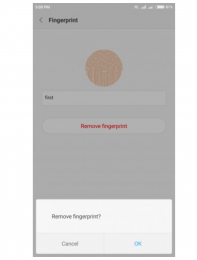
1. Go to Settings → Security → Fingerprint (wording varies: Biometrics, Lock screen & password) and delete all saved fingerprints.
2. Restart the phone.
3. Enrol again — press with the whole pad of the finger, not the tip, and move it slightly between touches so the sensor maps the edges.
4. Pro move: register the same finger twice as two separate entries, and add a finger from your other hand. Doubling the same finger dramatically improves recognition on budget in-display sensors.
Fix 4: Restart, Update, and Rule Out a Rogue App
1. Restart the phone — a stuck biometric service resets with it.
2. Update the software (Settings → System → Update): manufacturers ship fingerprint-sensor fixes in patches constantly, and Tecno/Infinix HiOS and XOS updates regularly include them.
3. If the sensor died after installing an app, boot into Safe Mode (hold the power-off button on screen until Safe Mode appears) — if the sensor works there, an app is interfering; remove recent installs.
4. Nothing helping? Back up and factory reset as the last software resort — if the sensor still fails on a clean phone, it’s hardware.
Fix 5: After a Screen Replacement (Read Before You Repair)
This is the heartbreak case: the phone came back from a screen repair and the fingerprint never worked again. In-display sensors are calibrated to the original panel — a low-quality replacement screen, or one fitted without recalibration, blocks or blinds the sensor permanently. If this is you, return to the technician and ask for a higher-grade (OEM-quality) panel and sensor recalibration; on some models only an original screen restores the sensor. Before any future screen repair, ask one question: “will the in-display fingerprint still work with this panel?” — and get the answer before paying.
Fingerprint (Touch ID) Not Working on iPhone
First, the honest context: current iPhones use Face ID — Touch ID lives on older iPhones (iPhone 8/SE generations) and many iPads. If yours has the home-button sensor:
1. Clean the Home button and your finger; remove any case or protector edge overlapping the button.
2. Settings → Touch ID & Passcode → delete existing fingerprints → restart → enrol fresh, covering the finger’s edges when prompted.
3. Update iOS — and note that after a third-party home-button or screen repair, Touch ID is often permanently disabled by Apple’s security pairing; only Apple or an authorised service centre can replace the button and keep Touch ID alive.
4. If enrolment itself fails on a clean, updated device, the sensor is faulty — book Apple support.
Frequently Asked Questions
Why is my fingerprint sensor suddenly not working?
In order of likelihood: dirty or wet sensor/finger, a new screen protector interfering with an in-display sensor, degraded enrolments that need re-registering, a software glitch a restart clears, or — if it followed a screen repair — a replacement panel that blinded the sensor.
Does a screen protector stop the fingerprint sensor?
It can. Thick or low-quality protectors blur in-display optical sensors and defeat ultrasonic ones. Use a thin “fingerprint compatible” protector and re-enrol your prints through it.
Why does my Tecno or Infinix fingerprint work sometimes and fail other times?
Intermittent recognition on budget in-display sensors is usually moisture, screen protector quality, or a thin enrolment. Re-register the same finger twice as separate entries and keep fingers dry — for Infinix-specific steps, see our Infinix fingerprint fixes guide.
Can a fingerprint sensor be repaired?
Yes — back-mounted and power-button sensors are cheap module swaps at any good phone repairer. In-display sensors are tied to the screen assembly, so repair usually means a quality panel replacement with recalibration.
Is fingerprint unlock safe to rely on?
For everyday use, yes — it’s more secure than a short PIN in practice because nobody can shoulder-surf it. Keep a strong PIN/passcode as backup, since the phone falls back to it whenever the sensor fails. For workplace biometric devices, our guide to improving fingerprint recognition at work covers the clock-in machines.
Quick recap
Work the list in order — clean, re-enrol, restart, update — and most fingerprint problems die at step one or two. The two traps worth remembering: cheap screen protectors quietly blind in-display sensors, and cheap screen replacements kill them permanently. Spend the extra on both and your thumb keeps working.
Which fix brought your sensor back — or is it still stubborn? Tell us your phone model in the comments; we reply.

Frenzy valentine is a passionate blogger, developer, and entrepreneur. He is the founder and author of myfreshgists.com.