Your GOtv remote control has more shortcuts than most people use. A few button combinations open parental control, change the picture shape or take you straight back to the last channel. This guide explains every button, the most useful shortcuts, and what to do when the remote stops working.
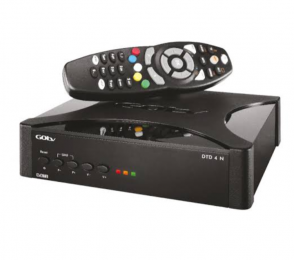
GOtv Remote Control Buttons Explained
Most buttons on the GOtv remote control do one job each. The ones people ask about are ALT, which jumps back to the last channel, Shift, which unlocks a second function on some buttons, and the coloured buttons, which match options shown on the screen.
Everyday buttons
- Power: switches the decoder on or puts it in standby.
- P+ and P-: change to the next or previous channel.
- V+ and V-: turn the volume up or down.
- Mute: turns the sound off and on.
- Numbers 0 to 9: type a channel number to go straight to it.
- OK: selects whatever is highlighted.
- Arrow buttons: move around menus and the TV guide. While you watch, they also bring up the channel list.
- Exit: closes a menu and goes back to your channel.
Information and guide buttons
- Info: shows the information bar, called the i-plate, with the channel, the current programme and what comes next. Press it twice for more detail about the programme.
- TV Guide: opens the schedule for every channel.
- Menu: opens the main menu, with settings, mail messages and self service.
- Help: opens help information on the decoder.
Special buttons
- ALT: jumps back to the last channel you watched. Press it again to return. It is handy during adverts or when two matches are on.
- Shift: does nothing alone. Hold it with another button to use that button’s second function.
- Language: changes the audio language on channels that offer more than one.
- Coloured buttons: red, green, yellow, blue and white. They do whatever the matching colour on the screen says, for example switching the TV guide view.
Useful GOtv Remote Control Shortcuts
Two shortcuts save the most time: Shift plus ALT changes the picture shape, and Shift plus Language opens parental control.
- Shift + ALT: switches the picture between letterbox and cropped, so it fills your TV properly.
- Shift + Language: opens parental control directly, without going through the menu.
- ALT, then ALT again: flips between your two most recent channels.
- Info, twice: shows the full description of the programme you are watching.
How to Use the TV Guide and Set a Reminder
Press TV Guide, move to an upcoming programme with the arrow buttons, and press OK to set a reminder. A small mark appears next to it, and the decoder reminds you when the programme starts.
The guide has two views. One lists channels with their programmes side by side, and the other sorts programmes by time. A coloured button at the bottom of the screen switches between them. The colour varies by decoder, so look for the label on screen.
You can only set a reminder for a programme that has not started yet. For a live match, set it before kick off.
Parental Control and the Default PIN
The default GOtv parental control PIN is widely reported as 1234. Change it as soon as you set up the decoder, so children cannot unlock blocked channels with it.
Open parental control with Shift + Language, or through Menu. From there you can block channels, set an age limit for programmes, and change the PIN. Choose a PIN you will remember, because a forgotten PIN usually means contacting GOtv to reset it.
Menu Options Worth Knowing
- Mail Messages: messages from GOtv. A flashing orange light on the decoder often means one is waiting.
- Advanced Options: signal information and installation settings, including the channel scan.
- Self service: help with error codes, subscriptions and package changes, where your decoder offers it.
- Information: a summary of your decoder, including its IUC number.
- User Preferences: language, subtitles, and how long the i-plate and volume bar stay on screen.
A tip on that last one: if the information bar stays on screen too long after you change channels, set its timeout to two or three seconds under User Preferences.
The signal screen under Advanced Options is also where you check reception. If you get only some channels, our guide to recovering lost GOtv channels explains what the numbers mean.
GOtv Remote Control Not Working?
When a GOtv remote control stops working, the cause is usually the batteries, something blocking the decoder’s sensor, or the decoder itself being stuck. Test each one in that order.
- Replace both batteries with fresh ones, the right way round.
- Check the infrared signal. Point the remote at your phone camera and press a button. If you see a flicker of light on the phone screen, the remote is sending.
- Clear the path. The remote must see the front of the decoder. A glass cabinet door, a speaker or bright sunlight can block it.
- Watch the decoder light. On most decoders a light flickers green each time it receives a press. No flicker means the signal is not arriving.
- Restart the decoder at the wall for two minutes. A frozen decoder ignores every button.
Remote shows a light but the decoder does not respond
If the remote clearly sends a signal and the decoder still ignores it, the decoder may be frozen or busy with a software update. Restart it at the wall. If it still will not respond, check the light on the front. Our guide to GOtv decoder lights explains each colour.
If none of this helps, the remote is probably faulty. A replacement GOtv remote is cheap at most GOtv dealers. A universal remote may also work, but buy one that lists GOtv decoders.
Get More From Your GOtv Remote Control
Learn ALT, Shift + ALT and Shift + Language first, because those three save the most time. Set reminders through the TV guide, change the parental PIN on day one, and keep spare batteries nearby. For more on your decoder, our guide to installing and activating a GOtv decoder covers the setup.
For decoder help and contact details in your country, visit the official GOtv Africa website.

Frenzy valentine is a passionate blogger, developer, and entrepreneur. He is the founder and author of myfreshgists.com.