
If your Infinix fingerprint is not working, the cause is usually software, not a broken sensor. On Infinix phones, the most common reason is a missing screen lock, which hides the fingerprint option completely. Fix that first, then work down this list.
These steps suit Infinix Hot, Note, Smart and Zero phones running XOS. Settings names can differ slightly between models, so look for the closest match.
Step 1: Infinix Fingerprint Not Working? Set a Screen Lock First
If the fingerprint option has vanished from Settings, set a PIN, pattern or password. XOS hides the fingerprint feature until a screen lock exists.
Go to Settings, then Security, or Settings, then Password and security. Set a PIN, pattern or password. Once it is saved, the fingerprint option comes back and you can add your print again.
This often happens after an update. The update can reset the screen lock and hide the fingerprint option at the same time.
Step 2: Clean the Sensor and Dry Your Finger
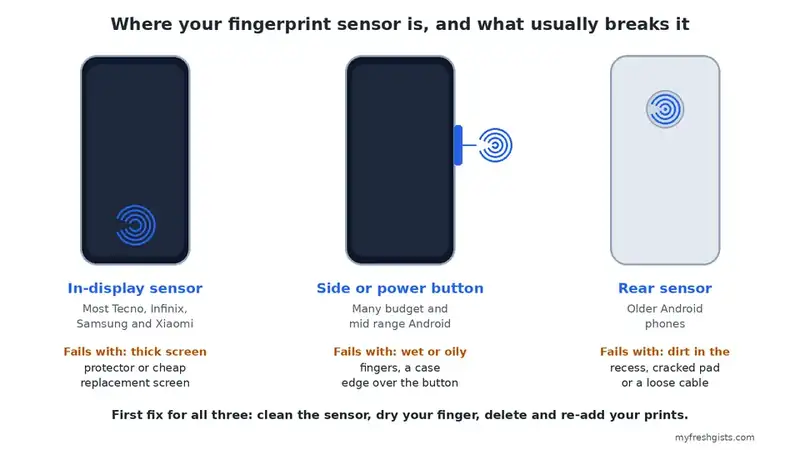
Moisture, oil, dust or lotion stops the sensor from reading your print. So wipe the sensor with a clean, dry, lint free cloth and dry your finger fully.
On a rear sensor, check the small dip around it for dirt. On a side sensor, check that your case does not cover the button.
Step 3: Restart the Phone
A restart clears small glitches that can freeze the fingerprint service. Hold the power button, tap Restart, and test the sensor again before moving on.
Step 4: Update XOS
Infinix often fixes fingerprint bugs in system updates. Go to Settings, then About phone, then System update. Install any update on Wi Fi with the battery above 40 percent.
Did the problem start right after an update? Then a newer update is often the cleanest fix.
Step 5: Check the Screen Protector
On Infinix models with the sensor under the screen, a thick or bubbled protector can block it. Did the sensor stop working after you fitted a protector? Remove it and test again. When it works without one, replace it with a thin, fingerprint compatible protector.
Step 6: Delete and Add Your Fingerprints Again
If the Infinix fingerprint sensor reacts but keeps rejecting your finger, the saved print may be poor or damaged. A fresh setup usually fixes it.
- Open Settings, then Security or Password and security, then Fingerprint.
- Enter your PIN, then delete every saved fingerprint.
- Add your finger again slowly.
- Lift and move your finger a little each time, so the phone records the edges.
Adding the same finger twice, as two separate prints, makes recognition much more reliable.
Step 7: Clear the Settings App Cache
A damaged cache can make the fingerprint option misbehave. Go to Settings, then Apps, find Settings in the list, then Storage, and tap Clear cache. This removes temporary data only. Your prints, passwords and files stay safe.
Step 8: Wipe the Cache in Recovery Mode
If that does not help, try a system cache wipe. Switch the phone off. Then hold Volume Up and Power together until the recovery menu appears. Use the volume keys to select Wipe cache partition, and press Power to confirm. This also keeps your personal data.
Step 9: Factory Reset as a Last Resort
A factory reset clears any deep software fault, but it erases everything. So back up your photos, contacts and files first. Then go to Settings, then System, then Reset options, then Erase all data. Keep the battery above 40 percent, because a phone that dies mid reset can end up worse.
When the Infinix Fingerprint Is Not Working Because of Hardware
If every software step fails, the sensor itself is probably damaged, often after a drop. At that point, home fixes cannot help.
Take the phone to Carlcare, the official Infinix service centre. This matters most while the phone is under warranty, because an unofficial repair can cancel that cover. Find your nearest centre on the official Carlcare site.
Common Questions
Why did my Infinix fingerprint option disappear?
Usually because the screen lock was removed or reset, often by an update. Set a PIN, pattern or password and the option returns.
Does a factory reset fix the Infinix fingerprint?
It fixes software faults, but not a damaged sensor. Try every other step first, since a reset erases your data.
Fixing an Infinix Fingerprint Not Working, Step by Step
When your Infinix fingerprint is not working, check the screen lock first, then clean the sensor, restart and update. Next, set up your prints again and clear the caches. Only treat it as a hardware fault after a reset fails.
For Tecno, Samsung, other Android phones or iPhone, see our general guide to a fingerprint sensor not working. If your Infinix also drops its signal, our guide to fixing Android network problems can help, and our tips to speed up an Android phone help with a slow handset.

Frenzy valentine is a passionate blogger, developer, and entrepreneur. He is the founder and author of myfreshgists.com.
Please am asking for help, my infinix X572 Note 4 fingerprint stopped working, it only shows fingerprint hardware not available, how can solve this problem?
Wipe Fingerprint App data and cache from your App Manager
Clear Cache data through Stock System recovery. To boot into Infinix system recovery, turn your Infinix off, then press and hold volume up button together with Power button.
If my infinix x626 finger print disappear on the phone settings, what can I do?
First, recheck to see if it really disappeared. Reboot your phone and if it doesn’t solve the problem reset your phone. I believe this is all you can do to fix any Android phone finger print without a professional help
If my Infinix X608 fingerprint is Diseapper on the phone settings? What can I do?
Shut it off completely, wait a few minutes and power on?
Otherwise time for a Factory Reset