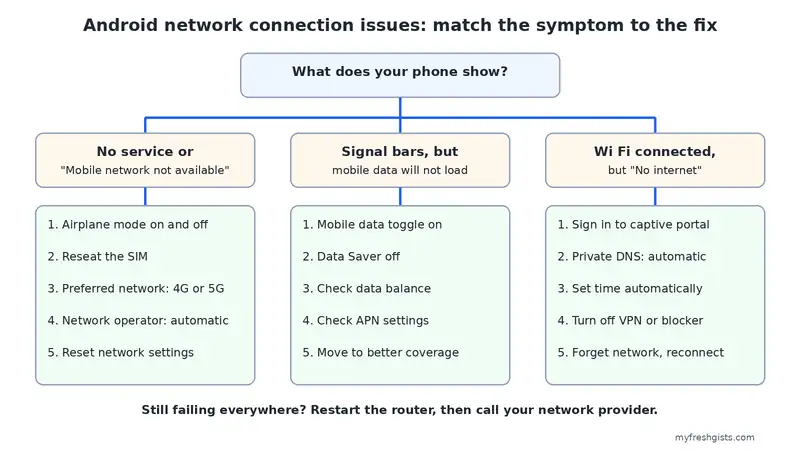
Android network connection issues come in three forms, and each has its own fix. Either your phone shows no service, or it has signal but mobile data will not load, or it joins Wi Fi but says No internet. So spot which one you have first, then go straight to that section.
These steps work on Samsung, Tecno, Infinix, Xiaomi, Pixel and other Android phones. Menu names vary a little, so look for the closest match.
Android Network Connection Issues: Start With a Quick Check
Before you change any setting, check whether other phones on the same network or Wi Fi also fail. If they do, the problem is the router or the provider, not your phone.
If only your phone is affected, think about what changed recently. A new VPN app, a system update, a security app or a new router password often causes these problems. Remembering the change usually points straight at the cause.
Quick Fixes for All Android Network Connection Issues
- Restart the phone. This reloads the radios and clears stuck network settings.
- Toggle airplane mode. Turn it on, wait thirty seconds, then turn it off. The phone then reconnects from scratch.
- Swap between Wi Fi and mobile data. If one works and the other does not, you have found which side is at fault.
Android Network Connection Issues: No Service or “Mobile Network Not Available”
If your phone shows No service or “Mobile network not available”, it cannot reach any tower. Check the SIM, the network type and the operator setting.
Reseat the SIM card
Switch the phone off and take out the SIM tray. Wipe the SIM gently, put it back firmly and switch on. A slightly loose SIM causes exactly this error. Also open Settings, then Network and internet, then SIMs, and check that Use SIM is on.
Set the preferred network type
Next, open the SIM settings and look for Preferred network type. Choose the highest option your network supports, such as 5G or 4G. On some phones, picking a lower option like 3G helps in areas with weak 4G. So try both if the signal keeps dropping.
Let the phone choose the network operator
In the same menu, find Network operators and turn on Choose automatically. A phone stuck on a manually chosen network often shows no service, especially after travel.
Check coverage and the handset
Step outside or move near a window, since thick walls block mobile signal. Then try your SIM in another phone. If it works there, the problem is your phone. If it fails there too, contact your network provider, because the SIM or line may be blocked.
Signal Bars, but Mobile Data Will Not Load
Open Settings, then Network and internet, then Mobile data, and confirm it is on. If it already is, turn it off and on again.
Then look beside the signal bars for 4G, 5G, LTE or H. If no letters appear, you have voice signal but no data signal where you are standing.
After that, check these three common causes:
- Data Saver: it can block apps in the background, so they look broken. Turn it off to test.
- Data balance: check that your bundle has not run out or expired.
- APN settings: if data never works on a new SIM, ask your network for the correct APN, or reset it to default in the SIM settings.
Android Network Connection Issues on Wi Fi: Connected but No Internet
Joining Wi Fi and reaching the internet are two different things. Android tests the connection after it joins, and shows No internet when that test fails.
Usually, one of five things blocks that test.
A sign in page you have not completed
Hotel, airport, office and cafe Wi Fi often needs you to accept terms on a login page first. If that page does not open by itself, open your browser and visit a plain address such as neverssl.com. This usually brings the login page up. Turn off any VPN or ad blocker first, because both can stop it.
Private DNS
Android 9 and later include Private DNS. If you set a custom provider and the network blocks it, nothing loads. So open Settings, then Network and internet, then Private DNS, and set it to Automatic. Then reconnect and test again.
The wrong date and time
Secure websites check your phone’s clock. If it is wrong, every secure site fails, which looks exactly like no internet. Go to Settings, then System, then Date and time, and turn on Set time automatically.
A VPN, ad blocker or security app
These apps sit between your phone and the internet. When one fails, everything stops while Wi Fi still looks connected. Turn each one off and test.
A stale saved network
Open your Wi Fi list, tap the network and choose Forget. Then connect again with the password. This gives the phone a fresh address from the router.
Reset Network Settings to Clear Android Network Connection Issues
If nothing above works, reset the network settings. On most phones, open Settings, then System, then Reset options. Then choose Reset mobile network settings, or Reset Wi Fi, mobile and Bluetooth. On Samsung, the option sits under General management, then Reset.
This keeps your photos, apps and files. However, it clears saved Wi Fi networks and Bluetooth pairings, so have your Wi Fi password ready.
When the Router Is the Problem
If every device on your Wi Fi fails, unplug the router and modem for sixty seconds. Then plug them back in and wait a few minutes. If the internet still does not work on any device, contact your internet provider.
Deeper Fixes Worth Knowing
Battery saving can stop apps from staying connected, especially on Xiaomi, Samsung, Tecno and Infinix. Set the affected app’s battery use to Unrestricted. Also check for a system update, since phone makers often fix network bugs in updates.
Finally, restart in Safe Mode by holding Power off on the power menu. If the connection works there, a recent app is to blame, so remove recent installs one by one.
Fixing Android Network Connection Issues for Good
First, work out whether you have no service, no mobile data or Wi Fi without internet. Then follow that section, and reset network settings as the last software step. Google’s own guide to fixing mobile connectivity issues shows the menus on Pixel phones.
If your phone also runs slowly, see our tips to speed up an Android phone. To share your phone’s data with a laptop, see our guide to using your phone as a hotspot. For SIM questions, our guide to checking your number on MTN, Glo and Airtel may help.

Frenzy valentine is a passionate blogger, developer, and entrepreneur. He is the founder and author of myfreshgists.com.