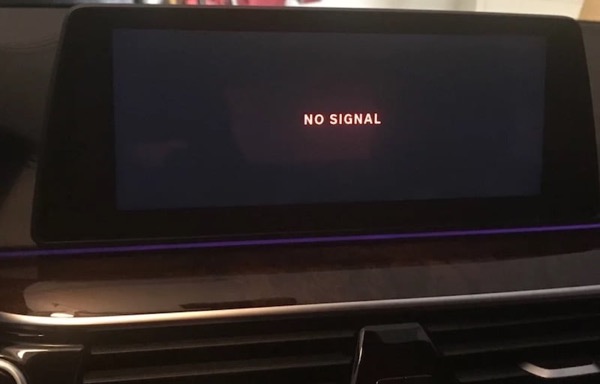
You’re cruising down the highway, your favorite SiriusXM station pumping through the speakers — then silence. The dreaded “No Signal” message stares back at you. Sound familiar? SiriusXM reception problems frustrate millions of subscribers every day, but most of these issues are fixable in minutes once you know what’s causing them.
This guide walks you through every proven fix — from quick refreshes to antenna checks and T-Mobile interference workarounds — so you can get your satellite radio back up and running fast.
Why Does Your SiriusXM Radio Keep Losing Signal?
Before you start replacing hardware or calling support, you need to identify the root cause. SiriusXM signal loss usually falls into one of these five categories:
- Physical obstructions — tall buildings, tunnels, bridges, dense tree foliage, and underground parking garages all block satellite signals.
- Antenna problems — a poorly positioned, damaged, or loose antenna dramatically reduces reception quality.
- T-Mobile cell tower interference — this is one of the most common and least-known causes (more on this below).
- Subscription or activation issues — an expired subscription or a radio that hasn’t received its latest refresh signal will show “Unsubscribed Channel” or “No Signal.”
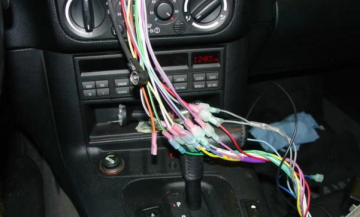
- Wiring or tuner faults — loose cables, kinked wires, or a failing tuner module can cause intermittent dropouts.
Now that you know what you’re dealing with, let’s tackle each fix systematically.
The T-Mobile Interference Problem Explained
If your SiriusXM signal cuts out in the exact same spot every single time you drive through it, T-Mobile cell tower interference is almost certainly the culprit. This problem has frustrated satellite radio users for years, and here’s the science behind it.
T-Mobile uses a system called AWS (Advanced Wireless Services) for mobile data traffic. AWS lets phones broadcast on one set of frequencies while receiving on a completely different set — which makes data transfer highly efficient. T-Mobile specifically uses two frequency bands for data: one in the 1700 MHz range and another in the 2100 MHz range. Together, these form what’s known as Band 4.
SiriusXM broadcasts its satellite signal between 2332 MHz and 2345 MHz. That sounds far enough from T-Mobile’s 2100 MHz band — but here’s the problem: as frequencies rise, their wavelengths get shorter. The difference in wavelength between 2100 MHz and 2345 MHz is only about one millimeter.
Because antennas work best when they’re physically close in size to the wavelength they’re designed to receive, a SiriusXM antenna tuned for 2345 MHz also does a surprisingly good job of picking up T-Mobile’s 2100 MHz signal. When you drive close to a T-Mobile cell tower, that 2100 MHz signal is so powerful it overpowers your SiriusXM reception entirely.
Two Ways to Counter T-Mobile Interference
- Upgrade to a higher-quality antenna — A better antenna more precisely tuned to SiriusXM’s exact frequency range reduces (though may not eliminate) the bleed-over from T-Mobile’s band. This helps, but it’s not a complete solution on its own.
- Install a notch filter — A notch filter selectively blocks certain frequencies while letting others through. Configured correctly, it passes SiriusXM’s 2332–2345 MHz signal and rejects T-Mobile’s 2100 MHz signal. This is the most effective hardware-level fix for interference-related signal loss.
If you’re dealing with intermittent dropouts near cell towers, also check out our guide on 5 fixes to try when your satellite radio antenna keeps losing signal for more antenna-specific solutions.
How to Fix SiriusXM Antenna Problems
Your antenna is the single most important factor in SiriusXM reception quality. Follow these checks before assuming a deeper hardware issue.
1. Check Your Antenna Placement
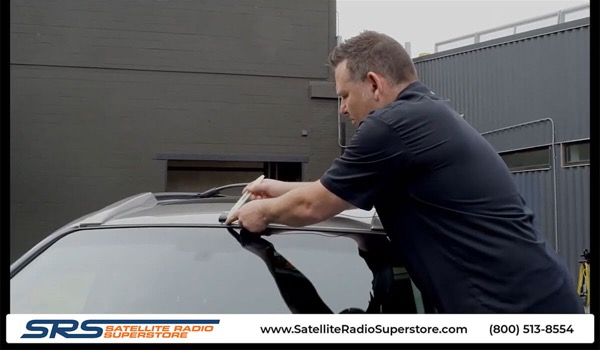
SiriusXM’s satellites orbit above the southern sky. For the best possible reception, mount your antenna outside the vehicle with a clear, unobstructed view of the southern sky. Metal roofs block satellite signals — glass does not — so if your antenna sits inside the vehicle, it can only receive a signal when it has a direct sightline to the satellite through a glass window.
2. Inspect the Antenna Cable
Check both ends of the antenna cable and confirm they’re seated firmly. Run your hand along the full cable length and feel for any kinks, pinches, or sharp bends. Even a small kink can degrade signal quality significantly. If the cable has been routed through a door seal or under trim panels, pull it out gently and inspect it for damage.
3. Try Unplugging and Re-seating the Antenna
Disconnect the antenna from the tuner, wait 10 seconds, then reconnect it firmly. While SiriusXM is playing, gently flex the antenna cable near both connection points and listen for any change in audio — an intermittent crackling or dropout points to a loose connection or damaged cable.
4. Look for the “Antenna Not Detected” Error
If your display shows “Antenna Not Detected” or “Check Antenna,” the tuner has lost communication with the antenna entirely. First re-seat the cable connections. If the error persists after re-seating, the antenna itself is likely faulty and needs replacement.
5. Move to an Open Area
Drive your vehicle to an open area with a clear view of the sky — away from tall buildings, bridges, or dense trees. Park there for 5–10 minutes with SiriusXM running. If the signal returns in the open area but drops in certain locations, you’re dealing with physical obstruction or nearby interference rather than a hardware fault.
For more in-depth antenna troubleshooting, our article on what to do when your satellite radio antenna keeps losing signal covers replacement and repositioning in full detail.
How to Refresh Your SiriusXM Radio (Step-by-Step)
A signal refresh is like restarting your phone — it re-establishes your radio’s connection to SiriusXM’s servers and often resolves missing channels, “Unsubscribed Channel” errors, and intermittent no-signal issues instantly.
Step 1: Check Whether You Actually Need a Refresh
First, confirm your radio needs a refresh rather than a hardware fix:
- Turn on your SiriusXM radio and wait 3 to 5 minutes without changing channels.
- Tune to Channel 62 (Bluegrass Junction).
- If you hear audio clearly — you don’t need a refresh. Your subscription is active and working.
- If you hear nothing, see a blank channel number, or get an “Unsubscribed Channel” message — you need to send a refresh signal to your radio.

Step 2: Request a Refresh Signal Online (Recommended)
Refreshing online is the fastest and most reliable method. Here’s how:
- Grab your smartphone or any device with internet access.
- Stay inside your vehicle so your radio can receive the refresh signal when it arrives.
- Make sure your SiriusXM radio is turned on and tuned to Channel 184.
- Park your vehicle outside — not in a garage — so the antenna has a clear view of the sky.
- Visit www.siriusxm.com/refresh on your device.
- Click the “Refresh My Radio” button (it appears right on the homepage).
- Enter your 12-digit Radio ID / ESN and submit the request.
- Your refresh signal arrives within moments. Wait on Channel 184 until the radio confirms it.
If you miss the refresh signal, simply repeat the process — it only takes 30 seconds.
Step 3: Request a Refresh by Phone
Prefer to speak with someone? Call SiriusXM directly:
- Phone: 1-855-MYREFRESH (1-855-697-3373) — this is a free toll-free call.
- Follow the automated prompts and provide your Radio ID when asked.
- Keep your radio on and tuned to Channel 184 during the call.
How to Find Your SiriusXM Radio ID (ESN)
You need your 12-digit Radio ID to request a refresh or contact support. Here’s how to locate it:
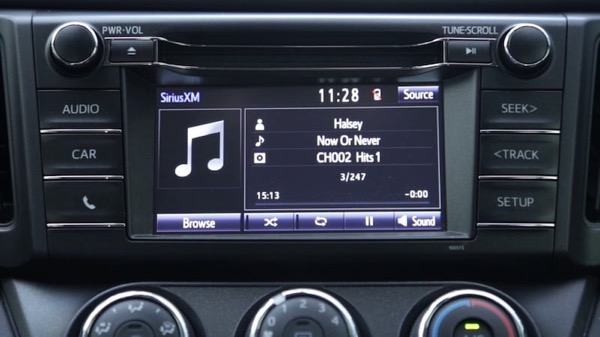
- Method 1 (easiest): Tune to Channel 0 on your SiriusXM radio. Your Radio ID displays on screen automatically on most models.
- Method 2: Press the Menu button on your radio and look for an “About,” “Radio ID,” or “ESN” option. Check your owner’s manual for model-specific navigation.
- Method 3: Check any SiriusXM welcome email, activation letter, or account correspondence you received when you subscribed.
Other Fixes: FM Frequency, Wiring Issues & Dead Zones
Fix FM Frequency Interference
Some SiriusXM adapters broadcast to your car stereo over a low-power FM signal. When you travel to a new city, a local FM station may share that same frequency and cause audio interference or total signal loss.
- Press the Menu button on your SiriusXM adapter and find the current FM broadcast frequency it’s using.
- Confirm your car stereo is tuned to exactly that frequency.
- If interference is present, visit SiriusXM’s frequency finder tool and select a clear frequency for your current location.
- Update both your adapter and your car stereo to the new frequency.
Inspect and Fix Wiring Problems
Loose or damaged wiring between the antenna, tuner, and stereo head unit causes intermittent dropouts that can seem random. While SiriusXM is actively playing, inspect every wire in the system:
- Gently wiggle all connectors at both ends of every cable.
- Flex the wiring along its full length — all these wires carry low voltage and are safe to handle.
- Listen for any crackling, static, or dropout as you flex specific sections.
- Replace any cable that shows physical damage, sharp kinks, or intermittent failure when flexed.
Know SiriusXM’s Dead Zones
SiriusXM covers most of North America, but coverage is not universal. These locations naturally block or degrade satellite signals regardless of your hardware:
- Underground parking garages and tunnels
- Extremely rural or mountainous terrain
- Areas surrounded by tall buildings (urban canyons)
- Dense forest with heavy overhead canopy
If your signal drops only in these environments, your hardware is fine. The outage is environmental and temporary.
Check Your Tuner
If you see a “Tuner Error” message and all antenna connections look clean, your tuner module may be failing. A tuner in poor condition struggles to receive the satellite signal, decode the data stream, and convert it into usable audio channels. Ruling out every other cause first before replacing the tuner is important, as it’s typically the most expensive component to replace.
Running into problems with other broadcast signal equipment? Our guide to fixing a Sky Digital Box with no signal covers many of the same diagnostic principles for satellite reception troubleshooting.
Planning a new satellite or TV setup from scratch? Read our step-by-step guide to installing Multi TV yourself for a complete walkthrough of DIY satellite installation.
Frequently Asked Questions
Why does my SiriusXM keep saying “No Signal”?
The most common causes are a blocked or damaged antenna, T-Mobile cell tower interference, an expired subscription, or a radio that hasn’t received a refresh signal. Work through the fixes above in order, starting with a refresh request, then checking your antenna placement and connections.
How do I fix SiriusXM no signal in my car?
Start by parking in an open area away from buildings and trees. Turn on the radio and tune to Channel 184. Visit siriusxm.com/refresh on your phone, enter your Radio ID, and send a refresh signal. If signal returns, you’re done. If not, inspect your antenna placement, cable connections, and check for local interference.
Why does SiriusXM cut out near certain cell towers?
T-Mobile’s 2100 MHz band sits very close in wavelength to SiriusXM’s 2332–2345 MHz range. A SiriusXM antenna picks up both frequencies, and T-Mobile’s tower signal is powerful enough to overwhelm satellite reception. Installing a notch filter or a higher-quality antenna significantly reduces this problem.
Can weather affect SiriusXM reception?
Severe thunderstorms and heavy precipitation can temporarily degrade satellite signals. These outages are short-lived and self-resolve as weather passes. If your signal drops only during storms, no hardware fix is needed.
How long does a SiriusXM refresh take?
A refresh signal typically arrives within a few seconds to a few minutes after you submit the request. Keep your radio on and tuned to Channel 184 while parked outside. If the signal doesn’t arrive within 5 minutes, repeat the refresh request.
What does “Unsubscribed Channel” mean on SiriusXM?
This message means either your subscription has lapsed, the channel isn’t included in your current package, or your radio hasn’t received the latest authorization update. First verify your subscription is active at siriusxm.com, then send a refresh signal to your radio to push the latest channel authorization.
Final Thoughts
SiriusXM signal problems are frustrating — but the vast majority of them are solvable without a dealer visit or expensive repairs. Start with the simplest fix: send a refresh signal while parked outside with your antenna facing the sky. Work your way through antenna placement, cable inspection, and FM frequency checks before assuming a hardware fault.
If T-Mobile interference keeps knocking out your reception in specific locations, a notch filter offers the most reliable long-term solution. And if you’ve ruled out every other cause and still see a “Tuner Error,” it’s time to replace the tuner module or consult a car audio specialist.
Got your signal back? Share which fix worked for you in the comments below — it helps other readers narrow down their problem faster.

Frenzy valentine is a passionate blogger, developer, and entrepreneur. He is the founder and author of myfreshgists.com.