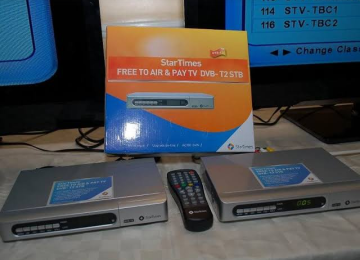
Paying your StarTimes subscription and still seeing a “please recharge” message is one of the most common complaints from subscribers. The instinct is to jump straight into a full decoder reset, but that’s actually the last step you should try, not the first.
This guide walks through the fixes in the right order, starting with quick checks that solve most cases in minutes, and ending with a full factory reset for the situations that genuinely need it.
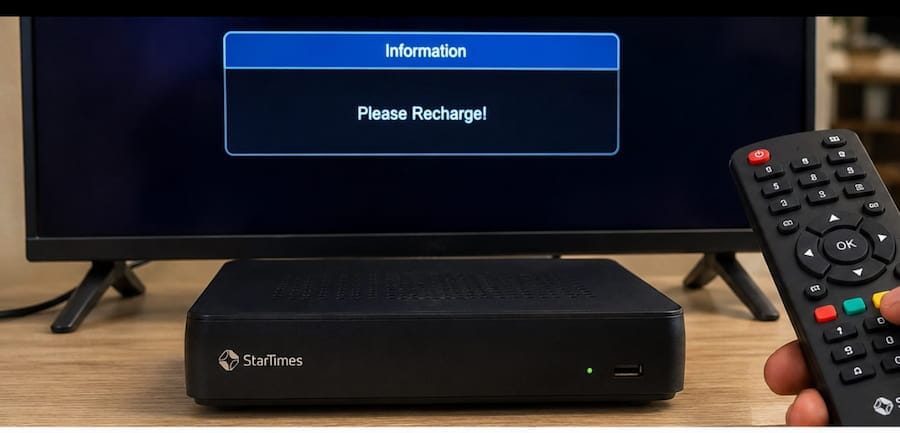
Check Your Balance and Payment Details First
Before touching any settings, confirm the payment actually went through correctly. Press Menu on your remote, go to Account Info, then Balance, to see your current subscription status directly on the decoder.
If the balance hasn’t updated, double-check that you paid using the correct paybill number or payment channel for your country, and that you entered your smart card number correctly as the account reference rather than a different number. A payment sent against the wrong reference number won’t show up on your account no matter how long you wait.
Give it 10 to 15 minutes after a correct payment before assuming something is wrong, since StarTimes’ system occasionally takes a short while to sync a new payment with your decoder.
Try a Soft Refresh Before a Full Reset
If the balance still hasn’t updated after waiting, try refreshing the connection before wiping any settings. If you have the StarTimes ON app, log in and look for a refresh or reactivation option tied to your account, which can push the update to your decoder without a manual reset. Some regions also support an SMS-based reactivation code, so check what’s available for your country’s StarTimes service.
A simple power cycle is worth trying too. Unplug the decoder for about 30 seconds, then plug it back in and let it fully reboot. This alone resolves a surprising number of cases where the payment had actually gone through but the decoder just hadn’t picked up the update yet.
When You Actually Need a Full Reset
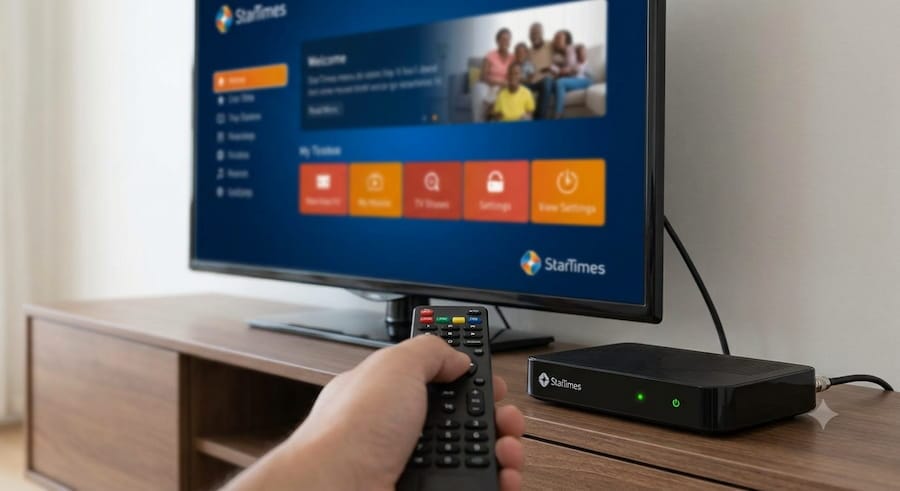
If your balance is confirmed correct and a soft refresh and power cycle haven’t fixed the display, a full factory reset is the appropriate next step. Keep in mind this clears your customized settings and forces the decoder to rescan for channels afterward, so make sure your antenna is properly connected and receiving decent signal before starting. Resetting with weak signal is the most common reason people end up with an empty channel list afterward.
Steps to Reset Your StarTimes Decoder
- On your StarTimes remote, press the blue button
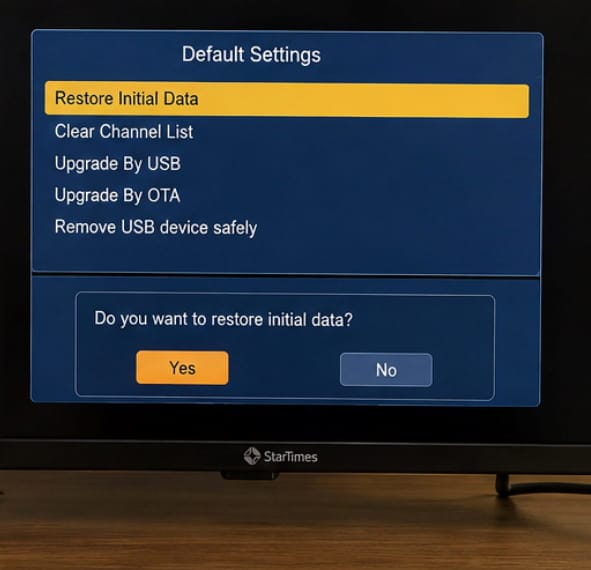
- Use the arrow keys to scroll to Default Settings
- Press the right arrow key to confirm the selection
- When prompted, select Yes
- Press OK to confirm
- A message will ask you to confirm “Restore initial data,” select Yes and press OK
The decoder will restart and automatically begin scanning for channels. Do not unplug it or interrupt the process at any point, since doing so partway through can leave the channel list incomplete or empty, requiring you to start the whole process over.
If your decoder ever asks for a PIN during this process, the default is 0000 unless you’ve personally changed it to something else.
If the Channel List Comes Back Empty
An empty channel list after a reset almost always points to weak or missing signal during the automatic scan, not a fault with the reset itself. Check that the antenna cable is firmly connected, and if you’re using an outdoor antenna, confirm it hasn’t shifted position.
Once the connection looks solid, go back into the menu, find Automatic Search, and run the scan again. This second attempt succeeds in most cases where the first one failed due to a signal hiccup during the reset itself. How To Fix Errors In Startimes Tv- Smartcard
If Payment Still Isn’t Reflecting
If you’ve confirmed your balance shows the payment, tried a soft refresh, and even completed a full reset with no change, the issue is likely on the account side rather than the decoder. Contact StarTimes customer care directly with your smart card number and the name your decoder is registered under, since this lets them check the payment against your account without you needing to keep resetting hardware that may not be the problem at all.
Working through these steps in order, starting with the simplest check and saving the full reset for last, solves the vast majority of “still asking to recharge” situations without unnecessary rescans or lost channel lists. For persistent account or payment issues that survive all of the above, StarTimes’ official troubleshooting and support page lists current contact numbers by region.

Frenzy valentine is a passionate blogger, developer, and entrepreneur. He is the founder and author of myfreshgists.com.
please I have recharge my startimes for over one hour and is still telling me to recharge what should I do? my name is Owoyemi Olusola Ayodele with phone number 08060714973 and decoder number 02145804732
I just renewed my startimes subscription yet it now showing please I need guidance what to do thanks
After restore my startime decoder default everything is empty in my startime so please wat to do
Good morning,my startimes keeps showing no signal from 1am till 4am why is it like that and when you go thru the default settings it shows channel list empty,kindly advice on what to do next
i have paid my decoder but some chanels dose not exist. why?
hi