Last updated: July 2026
You paid your subscription. You open the app to watch or to sort your account, and it refuses. It spins, it says “something went wrong, please try again,” or it logs you straight back out. You are not alone, and it is usually not your account.
This guide is organised by what you are actually seeing on your screen. Find your symptom below and go straight to it.
On This Page
- The 30-second check before anything else
- “Something went wrong, please try again”
- It won’t let me log in
- Stuck on the loading screen
- It keeps logging me out
- The TV code won’t work
- It buffers or freezes while watching
- It won’t work right after I paid
- Common questions
The 30-Second Check Before Anything Else
Before you touch a single setting, find out whether the problem is you or them. If the app is down for everyone, nothing you do will fix it, and you will waste an hour trying.
Search the app’s name followed by “down” on your phone’s browser, or check a service-status site like Downdetector. A spike in reports from your country means an outage on the provider’s side. Wait it out and try again later.
If reports are normal, the problem is on your device, and everything below is worth doing. This one check saves more frustration than any fix in this guide.
“Something Went Wrong, Please Try Again”
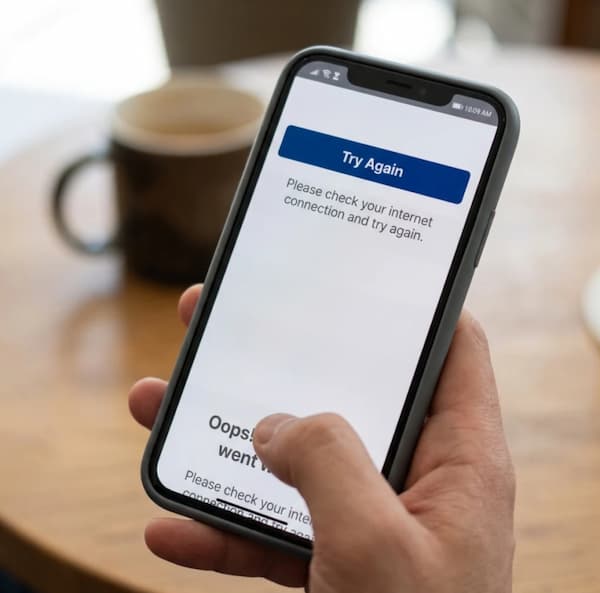
This vague message almost always means a weak connection or corrupted app data, not an account problem. Switch between Wi-Fi and mobile data, then clear the app’s cache. That resolves most cases.
The message is deliberately generic because the app itself often does not know what failed. Treat it as “I couldn’t reach the server cleanly” rather than “your account is wrong.”
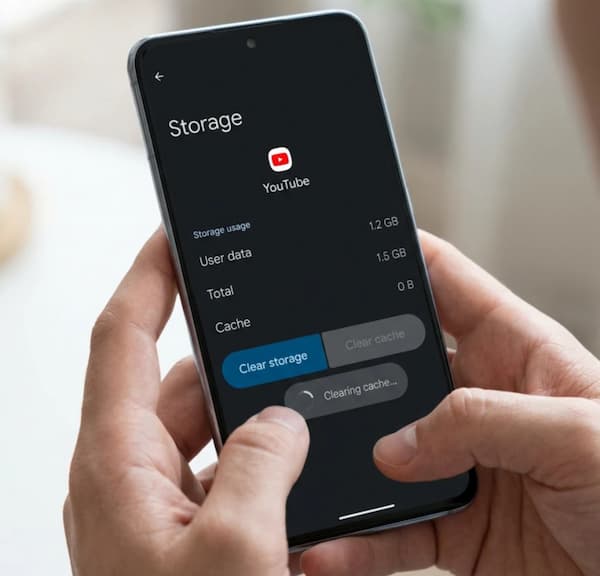
Switch your connection first, since a connection too weak for the app still loads web pages fine, which fools people into thinking it is strong enough. Then on Android, go to Settings, then Apps, choose the app, then Storage, then Clear Cache. On iPhone, delete and reinstall the app, which does the same thing.
If it still appears, force-close the app completely and reopen it, since a stale session from hours ago can trigger this on reopening.
It Won’t Let Me Log In
A login that fails is usually one of three things: the wrong details, an out-of-date app, or a temporary account lock from too many attempts. Check them in that order.
Confirm you are using the exact email or phone number registered to the account, not another one you also use. Passwords are case-sensitive, so check for an accidental capital or a trailing space.
Then update the app. An old version breaks against the current login system, and this is behind a surprising number of sudden login failures. If the app logged in fine last month and refuses now, an update is the likely cure.
If you have tried wrong passwords several times, the account may be briefly locked for security. Wait fifteen minutes, or reset your password through the provider’s website rather than the app, then log in fresh.
Stuck on the Loading Screen
An app frozen on its splash screen or an endless spinner is almost always corrupted cached data or a version conflict. Clear the cache, and if that fails, uninstall and reinstall completely.
A loading screen that never finishes means the app is choking on something stored locally rather than failing to reach the server. Clearing the cache removes the corrupted file it is stuck on.
If clearing the cache does not free it, uninstall the app, restart your phone or TV fully, and install it fresh. The restart matters, because it clears the app’s leftover processes from memory, which a reinstall alone sometimes does not.
It Keeps Logging Me Out
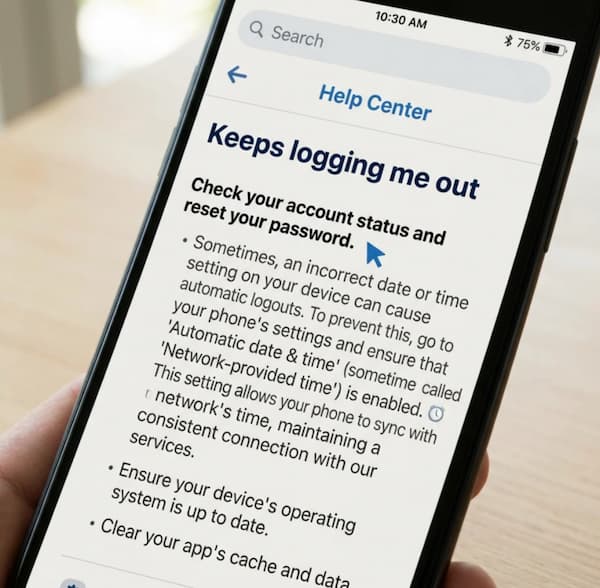
An app that logs you out repeatedly usually has a session or date problem. Check that your device’s date and time are set to automatic, since a wrong clock breaks the security tokens that keep you signed in.
This one is genuinely counterintuitive. Apps keep you logged in using tokens that are time-stamped. If your device clock is wrong, even by hours, the app treats your session as expired and kicks you out.
Go to your device settings and set date and time to automatic. Then check you are not exceeding the device limit, since most services allow a set number of logged-in devices and signing in on a new one can push an old one out. Sign out of devices you no longer use through the provider’s website.
The TV Code Won’t Work
Many streaming apps do not ask for a password on the TV. The TV shows a short code, and you enter it on a website using your phone. “Code not working” almost always means the code expired before you finished.
Codes are deliberately short-lived for security, often just a few minutes. If you took too long, it is already dead.
Close the app on your TV and reopen it to generate a fresh code, then enter the new one quickly on the activation website. Make sure both the TV and the phone are online, and that you pick the correct device type on the site. If the app will not install on the TV at all, your TV model may no longer be supported, and a cheap streaming stick running the app is the way around it.
It Buffers or Freezes While Watching
Constant buffering is a connection problem nine times out of ten, not an app fault. Restart your router, move closer to it, and lower the streaming quality in the app’s settings.
Streaming needs steady bandwidth, and video is far more demanding than anything else on your network. A connection that handles browsing can still stutter on HD video.
Restart your router by unplugging it for sixty seconds. Move the device closer, or remove whatever sits between it and the router. In the app’s settings, drop the video quality, which trades a little sharpness for a stream that does not stop. And if others in the house are streaming or downloading at the same time, that is often the whole problem.
It Won’t Work Right After I Paid
A payment can take a few minutes to reflect in the app, and occasionally the app needs a nudge to notice. Give it up to fifteen minutes, then fully close and reopen the app before assuming the payment failed.
The money reaching the provider and the app updating to show it are two separate events, and the second sometimes lags the first.
If the app still shows you as unpaid after fifteen minutes, check your account balance a different way, through the provider’s website or a USSD code, to confirm the payment actually registered. If the balance shows paid but the app does not, log out and back in to force it to refresh. If the balance shows nothing received, the payment itself failed, and that is a matter for whoever took the money, not the app.
Common Questions
Why does my TV app keep saying “try again”?
Usually a weak connection or corrupted app data. Switch between Wi-Fi and mobile data, clear the app’s cache, and force-close then reopen it. Check for an outage first if several fixes do nothing.
Is it my app or is the service down?
Search the app name plus “down” or check Downdetector. A spike of reports from your country means an outage you cannot fix. Normal reports mean the problem is on your device.
Why does the app log me out every time?
Most often a wrong device clock, which breaks the login tokens, or too many devices signed in. Set your date and time to automatic, and sign out of devices you no longer use.
Why won’t my activation code work on the TV?
It expired before you entered it. Reopen the app on the TV for a fresh code, enter it quickly on the activation website, and make sure both devices are online.
The app worked for months and suddenly won’t. Why?
Something changed, and it is usually an app update you have not installed, or a security update that reset your session. Update the app, clear its cache, and log in fresh.
Why does it only fail on Wi-Fi, not mobile data?
Your home network is likely the problem, not the app. Restart your router, and if a VPN or ad-blocker runs on that network, switch it off, since both can block the app’s connection.
The Short Version
Check for an outage first, so you do not fix a problem that was never yours. Then match your symptom to the section above. Weak connections, out-of-date apps, corrupted cache, and a wrong device clock cause the vast majority of these failures, and all four are quick to fix.
When an account app refuses entirely, remember that most pay-TV providers let you pay and clear errors by USSD or their website instead, so a broken app never has to mean a broken subscription.

Frenzy valentine is a passionate blogger, developer, and entrepreneur. He is the founder and author of myfreshgists.com.