Seeing E16, E19, E30, or E32 on your DStv screen usually means the decoder can’t confirm your subscription status with the server. Three of these clear with a simple refresh and reboot. One of them needs something different first, and mixing that up wastes time you don’t need to lose.
Here’s what each code actually means, the right order of steps to clear it, and a few related codes worth knowing so you’re not left guessing the next time something similar pops up.
What Each Code Means
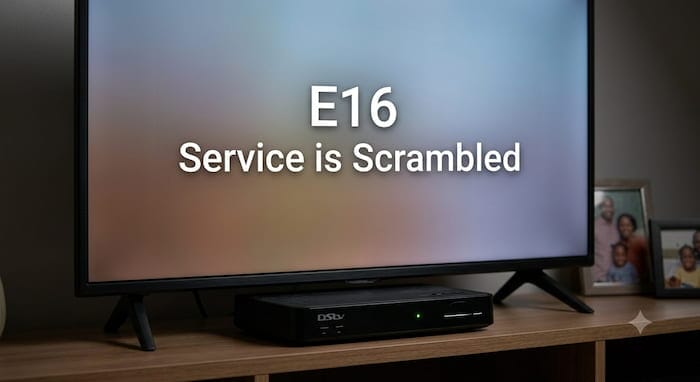
E16 shows up when the service appears scrambled, most often tied to a payment or package issue that hasn’t fully processed yet. This is one of the most frequently reported DStv codes, and it’s rarely a sign of a hardware problem. In most cases, the account itself is fine, and the decoder just hasn’t received confirmation of that yet.
E30 means the decoder is actively checking your subscription status with the server, which is completely normal right after installing DStv for the first time or renewing after a long gap between payments. Think of it as the decoder introducing itself to the network again rather than reporting a fault.
E32 means validation is in progress, essentially the same waiting state as E30 under a different code number. Some decoder models and software versions display one over the other for what is functionally the same process, so don’t treat E30 and E32 as separate problems requiring different fixes.
Why E19 Is Different
E19 is the one code here that doesn’t belong in the same bucket as the other three. It specifically means your subscription has expired, not just that verification is taking a moment. If you’re seeing E19, check your account balance before doing anything else, since a refresh and reboot won’t bring back access to a subscription that genuinely needs paying first.
This distinction matters because a lot of guides treat all four of these codes as identical and walk you through the same steps regardless of which one is showing. Following that advice for E19 means repeating a refresh and reboot cycle over and over without result, simply because the actual problem, an unpaid subscription, was never addressed.
Clearing E16, E30, and E32
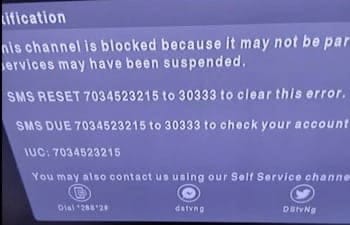
These three respond well to the same process, since they’re all forms of the decoder waiting to confirm something with the server rather than reporting an actual expired account.
- Unplug the decoder from the wall socket, not just switching it off at the back, and wait a full 60 seconds
- While it’s unplugged, log into the DStv self-service portal using your smartcard number
- Select the option to refresh your subscription or clear the error code, and follow the on-screen prompts
- Plug the decoder back in and leave it alone, without pressing any buttons, for 15 to 30 minutes
- Check the menu under General Information to confirm the subscription now shows as active
If the code is still there after the full wait, repeat the refresh and reboot one more time before assuming anything more serious is wrong. Most cases clear on the second attempt if they didn’t on the first, since the server-side update can occasionally take slightly longer to fully sync with your specific decoder.
Clearing E19
Start by checking your account balance, either through the decoder menu or the self-service portal, to confirm whether a payment is actually due. If it is, pay first, since no amount of rebooting restores access to a lapsed subscription.
Once payment is confirmed, run the same refresh and reboot process described above. The decoder needs both the payment on record and a fresh authorization signal, so skipping straight to a reboot without paying first just brings you back to the same error a few minutes later. How to Fix DStv Remote Not Working in Nigeria (Updated 2026 Guide)
If Your Smartcard Might Be the Issue
If any of these codes keep returning even after a successful refresh, a poorly seated or dirty smartcard can be the underlying cause rather than anything account-related. Power off the decoder before touching the card, remove it gently, and wipe the golden chip with a soft dry cloth rather than anything abrasive.
Reinsert it firmly with the chip facing down and the arrow pointing toward the decoder, matching the direction printed on the card itself. Power the decoder back on and give it another 15 minutes before checking the menu again, since the decoder needs a moment to re-read the card after reinsertion.
Other Related Codes Worth Knowing
A few other codes show up alongside these often enough to be worth a quick mention. E17 typically points to a smartcard pairing conflict and usually clears with a decoder reset through your account rather than a simple reboot. E18 means the decoder doesn’t recognize the smartcard at all, which is often solved the same way as a validation error: power off, clean the chip, and reinsert correctly. E48-32 is a signal-related code rather than a subscription one, and it usually means bad weather or a dish alignment issue rather than anything to do with payment.
Knowing the difference between a subscription code and a signal code saves you from refreshing your account repeatedly when the real issue is sitting outside on your dish.
Why These Codes Keep Coming Back
Recurring errors are usually the result of one of a few habits. Rebooting the decoder repeatedly instead of giving each refresh its full 15 to 30 minutes is the most common one, since interrupting the process partway through means it has to start over from scratch. Letting the decoder sit switched off for extended periods between uses is another, since a long gap makes the next verification take longer than usual.
Frequent power interruptions can also break the authorization handshake mid-process, which is where a basic surge protector earns its cost back quickly in avoided troubleshooting time. Giving the decoder a routine reboot every couple of weeks, along with a subscription refresh once a month even when nothing seems wrong, catches most of these issues before they ever show up as an on-screen error.
When to Contact DStv Support
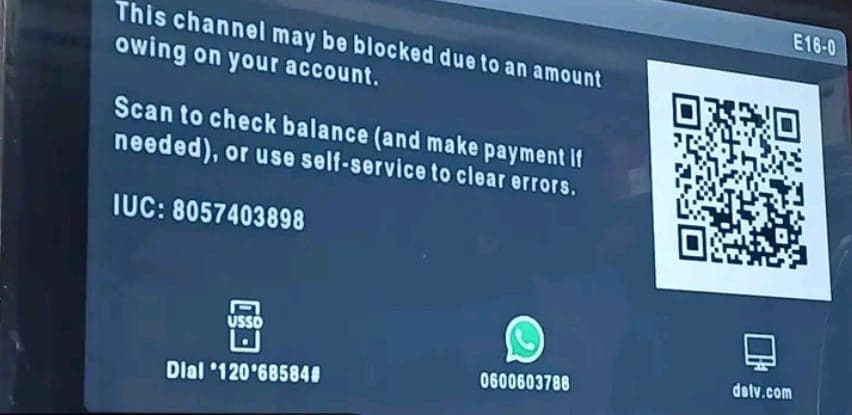
If you’ve confirmed payment is current, completed a full refresh and reboot cycle, and even reseated the smartcard with no change, that’s the point to contact support directly rather than continuing to repeat the same steps on your own. Have your smartcard number and the exact error code ready, since it speeds up how quickly a representative can look into the account on their end rather than starting from scratch.
Matching the fix to the actual code, rather than running the same reboot and refresh for all four, saves the most time here, especially for E19 where payment has to come before anything else works. For direct access to refresh your subscription or clear an error code right now, use the official DStv self-service portal.

Frenzy valentine is a passionate blogger, developer, and entrepreneur. He is the founder and author of myfreshgists.com.
I subscribed on 27 th oct today my account has been disconnected why? Am trying to fix E 32-4 it’s telling me to pay again when my account is valid up to 27th Nov how do you assist me?
How can I watch gotv through the mobile app
good day
I factory reset my DSTV and when installing the channels it stuck on option 4 0f 5 with no signal error