
A laptop plugged in not charging is often not a fault at all. Many laptops pause charging on purpose to protect the battery. So check that first, before you touch drivers or buy a new charger.
This guide covers Windows 10 and Windows 11. The fixes run from the quickest checks to the point where the battery really needs replacing.
Laptop Plugged In Not Charging: Quick Checklist
| What you see | Most likely cause | Start with |
|---|---|---|
| Charging stops at 55, 60 or 80 percent | Battery care mode | Fix 1 |
| Charging starts and stops | Cable, port or power supply | Fixes 2 and 3 |
| Laptop feels hot | Heat protection | Fix 4 |
| Problem began after a power cut or update | Stuck controller or driver | Fixes 5 and 6 |
| Battery drains fast or dies at 20 percent | Worn battery | Fix 7 |
Fix 1: Laptop Plugged In but Not Charging Past 80 Percent
If your laptop is plugged in but not charging past a round number such as 60 or 80 percent, a battery care mode is almost certainly holding it there. This is normal, and it makes the battery last longer.
Lithium batteries wear out faster when they sit at 100 percent. For that reason, most brands let you cap the charge. Windows then shows “plugged in, not charging”, which sounds worse than it is. On some laptops, Windows Smart charging does the same job and adds a small heart to the battery icon.
Here is where to look on popular brands:
- Lenovo: Conservation Mode in the Lenovo Vantage app, under Battery.
- Dell: the battery settings in Dell Power Manager or Dell Optimizer. Modes such as Primarily AC Use stop charging early.
- HP: Battery Health Manager, usually in the BIOS settings.
- ASUS: Battery Health Charging in the MyASUS app.
Keep the mode on for daily use. If you need a full charge before a trip, switch it off for a day, then turn it back on.
Fix 2: Test the Charger, Cable and Port
Next, work outward from the socket. First, look along the whole cable. Fraying, kinks and bent tips often cut power on and off.
Then check the charging port for dust or lint. Clean it gently with a dry cotton bud or a puff of air. Never use anything metal.
After that, borrow another charger if you can. If the laptop charges with it, your own charger has failed. A charger with a higher wattage is safe to use. On the other hand, a weaker one may charge very slowly or not at all.
If your laptop charges through USB C
A phone charger usually cannot power a laptop, even though the plug fits. So use a charger made for laptops. Also try the other USB C port, because some laptops only charge on one side. Finally, remove any hub or dock and plug the charger straight into the laptop.
Fix 3: Check Your Power Supply
Low or unstable voltage can stop a charger from working properly. This is common on weak grid supply and on some generators.
To test it, plug into a socket in another room. If the laptop charges there, your supply is the problem, not the laptop. In that case, a voltage stabiliser or a small UPS protects the charger. For steadier power at home, our guide to the parts of a solar power system explains the options.
Fix 4: Let the Laptop Cool Down
Laptops stop charging when the battery gets too hot. This often happens on a bed or sofa, where the vents are blocked.
So move the laptop to a hard, flat surface. Close heavy apps and wait ten minutes. If charging starts again, heat was the cause. Good airflow will stop it from happening again.
Fix 5: Do a Power Drain Reset
A power drain reset clears a stuck charging controller. It often fixes a laptop that stopped charging after a power cut or a flat battery.
- Shut the laptop down fully. Do not use sleep.
- Unplug the charger.
- If the battery can be removed, take it out.
- Hold the power button for 30 seconds.
- Put the battery back, plug in the charger and switch on.
Then check the battery icon in the corner of the taskbar. It should now say charging.
Fix 6: Reinstall the Battery Drivers
This fix works well after a Windows update. However, if the problem keeps coming back, the cause is elsewhere.
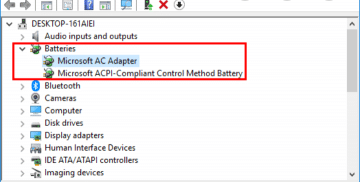
- Right click the Start button and open Device Manager.
- Expand Batteries. You will see Microsoft AC Adapter and Microsoft ACPI Compliant Control Method Battery.
- Right click each one and choose Uninstall device. This removes the driver only, not the battery.
- Shut down, unplug the charger, then plug it back in.
- Switch on. Windows reinstalls both drivers by itself.
Fix 7: Check the Battery Health Report
Windows can show exactly how worn your battery is. Open Command Prompt, type powercfg /batteryreport and press Enter, then open the file it creates.
Windows saves the report as an HTML file and shows you where it is. Open it in any browser. Near the top, compare two numbers. Design Capacity is what the battery held when new. Full Charge Capacity is what it holds today.
If today’s figure is about half of the original or lower, the battery is worn out. No setting or driver will bring it back.
Fix 8: Update the BIOS and Brand App
Charging is controlled by firmware as well as by Windows. Brands often release BIOS updates that fix charging bugs.
So visit your laptop maker’s support site and enter your exact model number. Install any BIOS update, keeping the charger plugged in the whole time. Also install the brand’s own app, such as Lenovo Vantage, HP Support Assistant, MyASUS or Dell’s power app. These tools can spot battery faults that Windows misses.
If you still use Windows 10, note that Microsoft ended its support on 14 October 2025. Your laptop still works, but it no longer gets free fixes from Microsoft. As a result, updates from your laptop maker matter even more.
Fix 9: Know When to Replace the Battery
Some signs point to a dying battery rather than a fault you can fix:
- The battery report shows a very low capacity.
- The laptop shuts off suddenly at 20 or 30 percent.
- Charging still fails with a good charger after every fix above.
Stop if the battery is swollen
A swollen battery is a fire risk. Warning signs include a bulging base, a lifted trackpad, gaps along the case, or a laptop that rocks on a table. If you see any of these, unplug the laptop and stop using it. Do not press or pierce the battery. Instead, take it to a qualified technician.
Laptop Plugged In Not Charging: Common Questions
Is it safe to keep my laptop plugged in all the time?
Yes, especially with a battery care mode switched on. The laptop stops charging at the limit and runs from the charger instead.
Why does my laptop say plugged in, not charging at 100 percent?
That is normal. The battery is full, so the laptop runs on mains power and leaves the battery alone.
Can a faulty charger damage my laptop?
A cheap or damaged charger can harm the battery over time. Therefore, use the original charger or a trusted replacement with the right wattage.
Fixing a Laptop Plugged In Not Charging, Step by Step
When a laptop is plugged in not charging, start with the battery care mode, since it explains most cases. Then check the charger, power supply and heat. Next, try a power drain reset and a driver reinstall. Finally, use the battery report to decide whether you need a new battery. Microsoft explains its own battery limit in its guide to Smart charging in Windows.
For other laptop problems, see our guides on fixing a laptop keyboard that stops working and speeding up a slow Windows laptop. If your laptop is old and slow as well, our guide to upgrading a laptop to an SSD can give it new life.

Frenzy valentine is a passionate blogger, developer, and entrepreneur. He is the founder and author of myfreshgists.com.
1 thought on “Laptop Plugged In Not Charging? 9 Fixes for Windows 10 and 11”