If your Firestick keeps buffering, lagging, or freezing during your favorite shows, you’re not alone. Even in 2026 with faster internet and newer Fire TV devices, these frustrating issues still affect millions of users.
Whether you’re streaming Netflix, Prime Video, or live sports, constant interruptions kill the experience. This ultimate step-by-step guide gives you every proven fix for Firestick buffering, lagging, or freezing in 2026, starting with the quickest solutions and moving to advanced troubleshooting. Follow the steps in order, and most people see smooth streaming again within minutes.
Common Causes of Firestick Buffering, Lagging, and Freezing
Firestick buffering usually happens because of weak Wi-Fi signals, overloaded networks, outdated software, or too many background apps running. Lagging and freezing often occur when the device overheats, runs low on storage space, or struggles with high-resolution 4K or 8K streams. Newer Firestick models handle higher quality better, but many homes still use older routers that can’t keep up with multiple devices. Identifying the exact cause helps you skip unnecessary steps and fix the problem faster.
Quick Fixes to Stop Firestick Buffering and Lagging Right Now
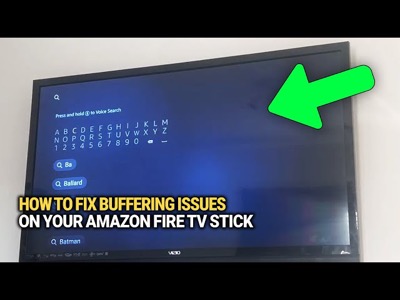
Start here — these simple steps solve the issue for most users. First, restart your Firestick completely: go to Settings, select My Fire TV, and choose Restart. This clears temporary glitches and refreshes the connection instantly. Next, test your internet speed directly on the Firestick or through a site like fast.com. You need at least 25 Mbps for smooth HD streaming and 50 Mbps or more for 4K. If the speed is low, move closer to your router or switch from 2.4 GHz to the faster 5 GHz band. Then clear the cache on your streaming apps: go to Settings, Applications, Manage Installed Applications, pick the app like Netflix or Prime Video, and select Clear Cache followed by Clear Data if needed. These quick actions fix Firestick buffering, lagging, or freezing for the majority of people in under five minutes. Amazon fire TV stick – How to setup, pair remote & WIFI , fix no signal
Optimize Your Wi-Fi and Network for Reliable Streaming
Weak or unstable Wi-Fi remains the top reason for persistent Firestick buffering in 2026. If possible, connect your Firestick using the official Ethernet adapter for a wired connection that eliminates wireless interference entirely. For Wi-Fi users, position your router closer to the TV and away from thick walls or devices that cause interference like microwaves. Update your router’s firmware through its admin page and turn on QoS settings to prioritize the Firestick. Homes with lots of smart devices benefit hugely from upgrading to a Wi-Fi 6 router, which handles multiple high-definition streams without slowing down. These network improvements make a dramatic difference when fixing Firestick lagging and freezing issues.
Update Software, Clear Storage, and Prevent Overheating
Outdated software and full storage are frequent culprits behind Firestick freezing. Head to Settings, My Fire TV, About, and select Check for Updates to install the latest version right away. After updating, go to Settings, Applications, Manage Installed Applications, and uninstall any unused apps to free up space. Firestick devices have limited internal memory, and when it fills up, performance drops sharply. Also make sure your Firestick has good ventilation — avoid enclosing it inside TV cabinets where heat builds up. Restarting after these changes often resolves ongoing lagging problems. Keeping everything updated and decluttered is one of the most effective long-term ways to prevent Firestick buffering.
Advanced Troubleshooting Steps for Stubborn Issues
If the problem continues, try these deeper fixes. Reduce video quality temporarily in each app’s settings from 4K to HD to test whether bandwidth is the bottleneck. Disable any VPN or proxy you’re using during streaming, as they can slow connections significantly. For persistent glitches, perform a factory reset: go to Settings, My Fire TV, and choose Reset to Factory Defaults. This wipes everything but solves deep software conflicts. Back up your apps and login details first so you can restore quickly afterward. These advanced steps fix even the most stubborn Firestick lagging and freezing cases that don’t respond to simpler solutions.

When to Contact Support or Upgrade Your Firestick
If you’ve followed every step and the Firestick still buffers constantly, it may be a hardware limitation. Reach out to Amazon support directly through the Firestick settings menu or their website with your device details ready. In some cases, especially with older models, upgrading to the latest 2026 Firestick version delivers noticeably better performance and fewer issues. Amazon frequently offers trade-in deals or discounts for existing customers.
Following this ultimate step-by-step guide should resolve almost any Firestick buffering, lagging, or freezing problem in 2026. Work through the steps methodically and you’ll be back to smooth, uninterrupted streaming in no time. Enjoy your shows without the frustration.

Frenzy valentine is a passionate blogger, developer, and entrepreneur. He is the founder and author of myfreshgists.com.