Last updated: May 2026
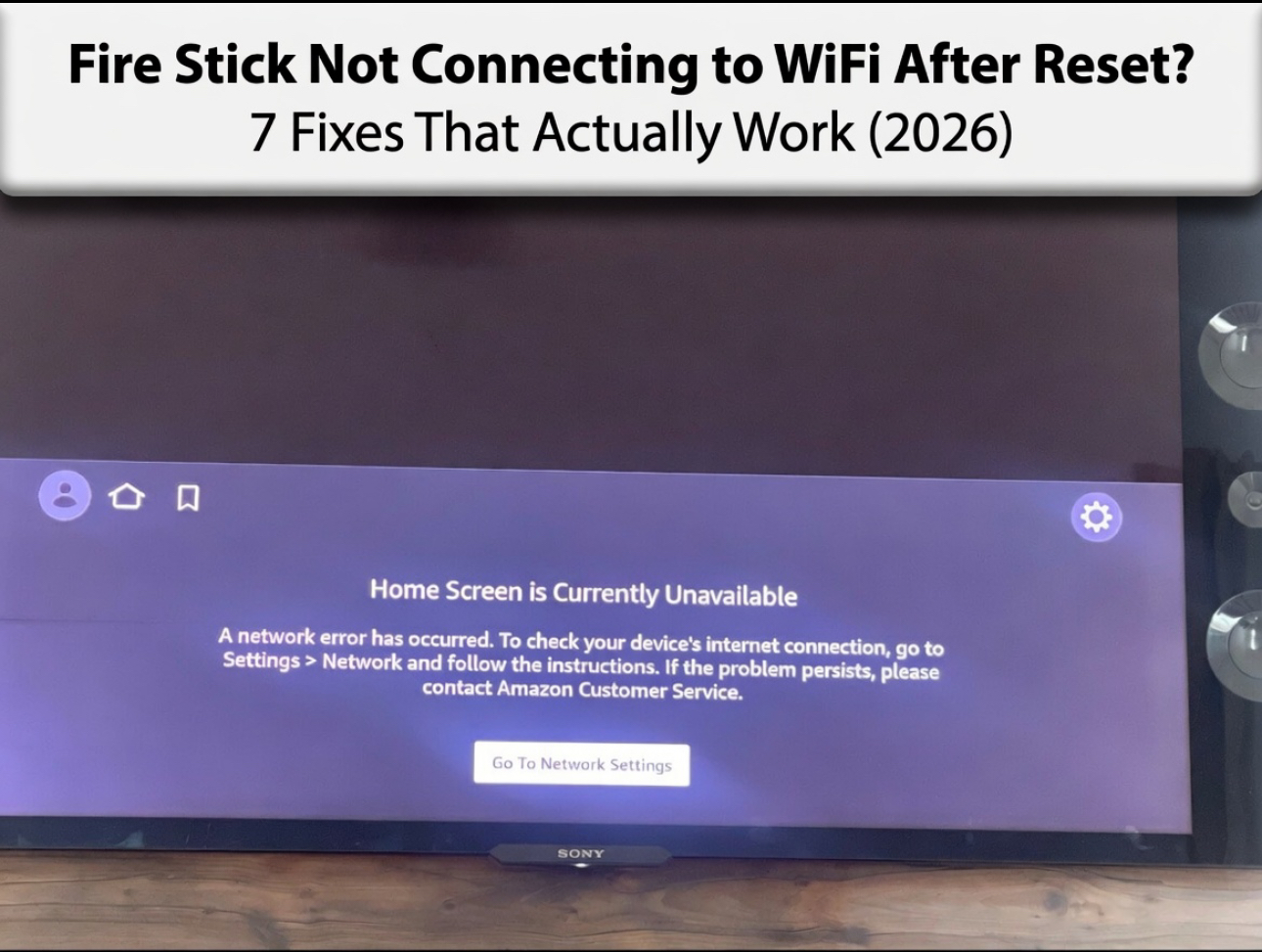
If your Fire Stick not connecting to WiFi after reset is driving you crazy, you are not alone — this is one of the most searched Fire TV problems of 2026. A factory reset wipes every saved network credential on your device, and with the latest Fire OS 8 updates and new router firmware rolling out across homes everywhere, reconnecting is no longer as simple as typing in your password. The good news: every fix in this guide is tested, specific, and has worked for thousands of users in the past few months.
Whether you own a Fire Stick 4K Max, a Fire Stick Lite, or an older third-generation model, the seven solutions below cover the full range of causes — from simple power-cycle quirks to deep router compatibility issues with WPA3, Wi-Fi 6E, and the latest 2025–2026 router firmware. Read through the flowchart section first if you want to jump straight to the fix most likely to work for your setup. Otherwise, start at Fix 1 and work your way down.
Why Does Fire Stick Lose WiFi After a Factory Reset?
Before diving into solutions, it helps to understand what actually happens when you reset a Fire Stick — because the cause shapes the cure.
Credential wipe is total. A factory reset on Fire OS 8 erases every stored WiFi network, including the SSID, password, security type, band preference, and static IP configuration. Unlike Android phones that sometimes hold onto network profiles in a recovery partition, Fire TV wipes this data completely. Your router still remembers the Fire Stick’s MAC address from past connections, but the Fire Stick has forgotten everything.
Fire OS 8 handshake behavior changed. Fire OS 8.x (rolling out through 2025 and into 2026) introduced tighter security validation during the initial WiFi handshake. On some networks, Fire OS 8 now rejects connections it previously accepted silently — particularly WPA3-only networks. If your router was updated in the last 12 months and automatically upgraded its security mode from WPA2 to WPA3 Transition or WPA3-only mode, your Fire Stick may now be unable to authenticate, even with the correct password.
WPA3 and WPA2 handshake conflicts. WPA3 uses a new authentication protocol called Simultaneous Authentication of Equals (SAE). Older Fire Stick models (pre-2022) do not support SAE natively. Even newer models supporting WPA3 can run into a “PMF required” mismatch where the router demands Protected Management Frames and the Fire Stick’s driver sends an incompatible capability flag after a fresh reset. This causes a silent connection failure that shows as “Unable to connect” with no useful error code.
DHCP lease conflicts. When your Fire Stick gets a new IP address after a reset, your router’s DHCP table may still have a stale entry tied to the device’s MAC address — particularly on routers running older DHCP daemon versions. The router tries to reassign the old IP, discovers a conflict, and either drops the lease request or assigns a non-routable address. The Fire Stick connects to WiFi but has no internet access, which shows as “Connected — No Internet” or causes apps to fail at launch.
5GHz band rejection after reset. Before a reset, your Fire Stick may have been running on the 5GHz band for months. After a reset, it scans both bands simultaneously during initial setup. On busy networks or in homes with thick walls, the Fire Stick’s chip can latch onto a 5GHz signal that appears strong but delivers poor packet completion rates during the authentication phase. Fire OS 8 has a known tendency to fail the initial handshake on 5GHz before falling back — and in some cases, it does not fall back cleanly, leaving the device in a loop.
New 2025–2026 router firmware incompatibilities. Several popular routers pushed major firmware updates in late 2025 and early 2026 that changed default channel widths, enabled 6GHz bands, or shifted default DNS behavior. The ASUS ZenWiFi Pro ET12, for example, introduced a firmware update (version 3.0.0.6.102_34722) that enabled 160MHz channel width on 5GHz by default — a setting that causes partial packet loss with Fire Stick during setup. The TP-Link Archer BE550 similarly enabled MLO (Multi-Link Operation) by default in its 2026 firmware, which Fire OS 8 does not yet support properly during initial network association.
7 Proven Fixes for Fire Stick Not Connecting to WiFi After Reset
Work through these fixes in order. Most users find their solution by Fix 3 or Fix 4. Each one includes exact steps, a time estimate, and a clear explanation of why it works.
Fix 1: Basic Power Cycle and Restart Sequence
Time to complete: 5 minutes
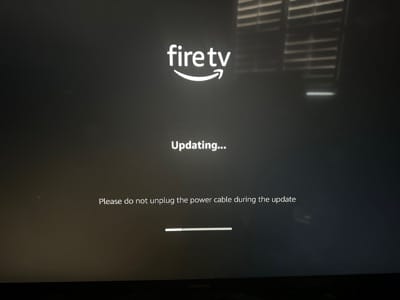
This is not just “turn it off and on again.” There is a specific sequence that clears the Fire Stick’s network adapter state and forces your router to treat it as a brand new client — which matters after a reset.
- Unplug your Fire Stick from the HDMI port and remove it from its power adapter completely. Do not just press the remote’s power button.
- Unplug your router and modem from the wall. If you have a combined modem/router unit, unplug that single device.
- Wait a full 60 seconds. This is long enough for the DHCP lease table in most routers to clear the stale entry for your Fire Stick’s MAC address.
- Plug your modem back in first (if separate). Wait until its internet light is solid — usually 30–45 seconds.
- Plug your router back in. Wait until the WiFi indicator is solid, not blinking.
- Plug the Fire Stick back into the HDMI port and connect its power adapter.
- Power on your TV and switch to the Fire Stick’s HDMI input.
- When the setup screen appears, select your WiFi network and enter your password.
Why This Works: The 60-second gap lets your router’s ARP cache expire the old MAC-to-IP binding. When the Fire Stick comes back online, your router issues a fresh DHCP lease instead of trying to restore a stale entry that may conflict with another device on the network.
Fix 2: Forget Network and Reconnect Fresh
Time to complete: 3 minutes
After a factory reset, the Fire Stick technically has no saved networks — but if you partially connected during setup and then got stuck, there can be a corrupted partial network profile stored in Fire OS’s WiFi state manager. Clearing it gives you a genuinely clean slate.
- On your Fire Stick home screen, go to Settings (gear icon in the top navigation bar).
- Scroll right and select Network.
- You will see your WiFi network listed, possibly with a “Not connected” or “Connected — No Internet” status beneath it.
- Highlight your network name (do not press Select yet).
- Press the Menu button on your remote (the three horizontal lines). This opens a sub-menu.
- Select Forget this network and confirm.
- Wait 10 seconds, then highlight your network name again from the full list and select it.
- Enter your WiFi password carefully. Note that Fire OS’s keyboard distinguishes between uppercase and lowercase — use the Shift key for capitals.
- Select Connect.
Pro Tip: If your network name does not appear in the list, scroll to the bottom and select Join Other Network to enter the SSID manually. Hidden networks will not appear in the scan list even if the signal is strong.
Fix 3: Change Your WiFi Password Temporarily (Most Effective Fix)
Time to complete: 10 minutes | ⭐ Most Effective Fix for Post-Reset Issues
This sounds counterintuitive, but temporarily changing your WiFi password — and then changing it back afterward if you prefer — forces every device on your network to re-authenticate from scratch. More importantly, it clears a subtle but common issue: a cached WPA handshake key mismatch between your router and the Fire Stick.
After a Fire Stick factory reset, Fire OS 8 sometimes retains a fragment of the previous PTK (Pairwise Transient Key) derivation data in a low-level network cache that survives even a factory reset on some hardware revisions. Changing the password invalidates any cached key material on both sides, forcing a completely fresh 4-way handshake.
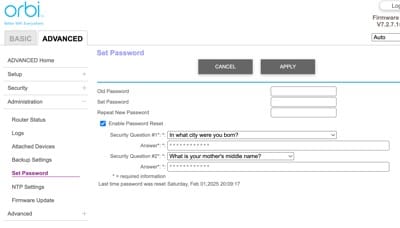
- Log into your router’s admin panel. Type 192.168.1.1 or 192.168.0.1 into a browser on your phone or computer. If neither works, check the label on the back of your router for the gateway address.
- Find the Wireless Settings or WiFi section (exact name varies by router brand).
- Locate the WiFi Password or Passphrase field.
- Change the password to something new — for example, add the number “1” to the end of your current password.
- Save the settings. Your router will briefly restart its wireless radio, disconnecting all devices.
- On your Fire Stick, go to Settings → Network, forget the network if it appears, and reconnect using the new password.
- Test that the Fire Stick connects and has internet access by opening the Silk Browser or launching an app.
- If you want your original password back, log into the router admin panel again and restore it. You will need to reconnect all your devices with the old password.
Why This Works: Changing the password invalidates all cached WPA/WPA2 session keys stored in both the router and Fire Stick’s wireless driver. It forces a completely clean 4-way handshake, bypassing any key negotiation bug introduced by Fire OS 8’s security hardening updates.
Fix 4: Switch to 2.4GHz Band Only (Critical for Fire Stick Compatibility)
Time to complete: 8 minutes | ⚠️ Critical Step for 5GHz and Wi-Fi 6E Routers
If you have a modern dual-band or tri-band router — especially a Wi-Fi 6 or Wi-Fi 6E model like the ASUS ZenWiFi Pro ET12 or TP-Link Archer BE550 — your 5GHz or 6GHz bands may be incompatible with the Fire Stick during initial setup. All current Fire Stick models (including the 4K Max Gen 2) support 5GHz under normal operation, but the initial WPS/WPA association during setup can fail on 5GHz when the router is broadcasting at 80MHz or 160MHz channel widths.
- Log into your router’s admin panel (see Fix 3, Step 1 for how to access it).
- Find the Wireless Settings section. Look for a tab or toggle labeled 2.4GHz, 5GHz, or Band Steering.
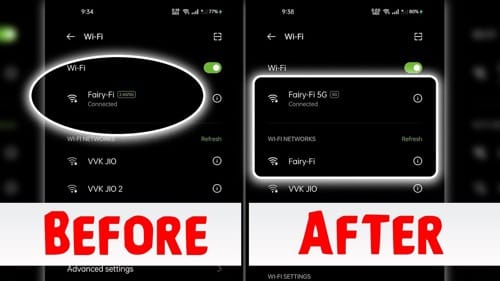
- If your router uses a single unified SSID (band steering / smart connect), find the option to separate the bands into different network names. Name them something like “MyNetwork_2G” and “MyNetwork_5G” so you can tell them apart.
- On the 2.4GHz network settings, confirm the channel width is set to 20MHz (not 40MHz). This maximizes Fire Stick compatibility.
- Save settings.
- On your Fire Stick, go to Settings → Network and connect specifically to the 2.4GHz network name you just created.
- Once connected and confirmed working, you can optionally switch back to the 5GHz network — the Fire Stick will usually connect successfully after the initial setup is done on 2.4GHz.
Why This Works: The 2.4GHz band uses a simpler association protocol with wider device compatibility. Fire Stick models use a Mediatek MT7921 or Qualcomm WiFi chip depending on revision, and both have documented driver quirks when authenticating on 5GHz with 80MHz+ channel widths during cold-start setup sequences.
Fix 5: Adjust Router Settings — Channel, Bandwidth, and DNS
Time to complete: 15 minutes
Sometimes the Fire Stick connects to WiFi but has no actual internet access — apps fail, the home screen shows a spinning loader, or you see a “Check your internet connection” error. This is almost always a DNS or channel interference problem, not a password problem.
- Log into your router’s admin panel.
- Change the WiFi channel. In the 2.4GHz settings, change the channel from “Auto” to a specific channel — use 1, 6, or 11 (these are the only non-overlapping channels on 2.4GHz). Channel 6 is a good default. This reduces interference from neighboring networks.
- Reduce the channel bandwidth. Set 2.4GHz channel width to 20MHz. Set 5GHz channel width to 80MHz (down from 160MHz if it was higher). The Fire Stick 4K Max supports 80MHz on 5GHz but can fail the initial handshake at 160MHz.
- Set custom DNS on the Fire Stick. On your Fire Stick, go to Settings → Network → select your connected network → press the Menu button → select Manage Network → set IP settings to Static.
- In the DNS 1 field, enter 8.8.8.8 (Google’s primary DNS). In the DNS 2 field, enter 8.8.4.4. Leave the IP address and gateway fields as they were (copy them from the automatic settings before switching to static).
- Save and reconnect.
- Alternatively, you can set the custom DNS on the router itself — look for a DHCP DNS Override or DNS Server field in the router’s LAN or DHCP settings and enter 8.8.8.8 there.
Pro Tip: If your ISP’s default DNS is slow or has intermittent failures, your Fire Stick can connect to WiFi perfectly but still show “no internet” — because DNS resolution is failing silently in the background. Switching to Google DNS (8.8.8.8) or Cloudflare DNS (1.1.1.1) typically solves this in under 60 seconds.
Fix 6: Update or Roll Back Fire Stick Software
Time to complete: 20–30 minutes
Fire OS 8 has seen several point releases that introduced and then partially fixed WiFi authentication bugs. If you are on an early Fire OS 8.x version, updating may fix your issue. If you recently updated and the problem started, rolling back (or waiting for the next patch) is the answer.
- If your Fire Stick can connect temporarily (even briefly), go to Settings → My Fire TV → About → Check for Updates.
- If an update is available, install it. The device will restart and reconnect. Fire OS 8.3.2.5 and later versions include a specific fix for WPA3 Transition Mode handshake failures that affected Fire Stick 4K and 4K Max models.
- If you cannot connect to WiFi at all to download an update, use your phone’s mobile hotspot as a temporary network to get online. Name the hotspot the exact same SSID and password as your home network — the Fire Stick will connect to it identically. Once online, update Fire OS, then switch back to your home network.
- To check your current Fire OS version: Settings → My Fire TV → About. The version number is shown under “Fire OS.”
- If updating made the problem worse: Unfortunately, Fire OS does not support direct rollback through the UI. However, you can contact Amazon support and they can push a specific firmware build to your device remotely in some cases. This is rare but documented.
Why This Works: Amazon pushed multiple WiFi driver patches in Fire OS 8.2 through 8.3 that specifically addressed PMF (Protected Management Frame) negotiation failures with WPA3-capable routers, DHCP timeout values that were too short on congested networks, and a 5GHz band preference bug introduced in Fire OS 8.1.
Fix 7: Factory Reset with Advanced Network Configuration
Time to complete: 30–40 minutes
If none of the above has worked, the issue is almost certainly a deep compatibility conflict between your specific router configuration and the Fire Stick’s network stack. The solution is to factory reset the Fire Stick again — but this time, configure the router first and use a static IP setup during the Fire Stick’s initial setup wizard.
- Prepare your router first. Before resetting the Fire Stick, log into your router and make these changes: set WiFi security to WPA2-Personal (not WPA3 or WPA3 Transition), set channel width to 20MHz on 2.4GHz, set a fixed channel (6 on 2.4GHz), disable any “AI mesh optimization,” “band steering,” or “smart connect” features temporarily.
- Reset the Fire Stick. Go to Settings → My Fire TV → Reset to Factory Defaults. Confirm. The device will restart and show the setup wizard.
- When the setup wizard reaches the WiFi screen, select your network name and enter the password.
- If it fails to connect at this point, wait for it to show the error, then select Use a different network — do not keep retrying the same network name.
- On the “different network” screen, scroll down to Join Other Network, enter your SSID manually, and select WPA2 Personal as the security type.
- After entering the password, look for an Advanced or More Options button before connecting. If available, switch from DHCP to Static IP.
- Set a static IP address that is outside your router’s DHCP range (for example, if your DHCP range is 192.168.1.100–200, use 192.168.1.50). Set the gateway to your router’s IP (usually 192.168.1.1), subnet mask to 255.255.255.0, DNS1 to 8.8.8.8, and DNS2 to 8.8.4.4.
- Connect. This bypasses the DHCP conflict entirely.
Why This Works: Using a static IP eliminates every DHCP-related failure point. WPA2-only mode removes WPA3 handshake incompatibilities. Manually entering the SSID and security type prevents Fire OS from guessing the security protocol incorrectly — a known issue when the router name contains special characters or spaces.
Common Mistakes People Make After Resetting a Fire Stick
Knowing what not to do is just as important as knowing the right steps. These six mistakes are responsible for the majority of “nothing is working” situations people run into.
1. Retrying the same failed connection 10 times in a row. Each failed authentication attempt on WPA2/WPA3 can trigger a temporary lockout on some routers — particularly ASUS and Netgear models with intrusion detection enabled. After three or four failed attempts, the router may block the Fire Stick’s MAC address for 5–15 minutes. If your connection attempts keep failing instantly, stop and wait 10 minutes before trying again.
2. Not restarting the router before reconnecting. People restart the Fire Stick but forget about the router. The router holds stale session data from before the reset. Without restarting the router, you are asking it to accept a device it thinks it already knows — but the credentials no longer match on the Fire Stick’s side.
3. Assuming the WiFi password is correct without double-checking. After a factory reset, you must re-enter your WiFi password manually. If your password contains symbols like &, @, !, or #, these are easy to mistype on the Fire OS keyboard, which uses a different layout than a standard phone keyboard. Write the password down on paper and enter it character by character.
4. Using a 6GHz network for initial setup. If your router broadcasts a 6GHz band (Wi-Fi 6E), do not try to connect the Fire Stick to it during initial setup. Even the Fire Stick 4K Max Gen 2 does not support 6GHz. Attempting to connect to a 6GHz SSID will simply fail with a generic error, confusing you into thinking there’s a deeper problem.
5. Skipping the software update step. Many users fix the WiFi problem enough to get online but then skip checking for a Fire OS update. This leaves them with the underlying bug in place, meaning the problem may recur after the next automatic maintenance reset or after a power outage resets the router. Always check for Fire OS updates immediately after getting connected.
6. Not checking whether the problem is the Fire Stick or the router. Before spending an hour on Fire Stick fixes, connect a different device (your phone or laptop) to the same WiFi network. If that device also struggles to connect or has intermittent drops, the problem is the router, not the Fire Stick. A simple router firmware update or ISP call will fix it faster than anything you do on the Fire Stick side.
How to Prevent WiFi Issues After Future Resets
Once you have the Fire Stick working, take these steps to make sure you never have to troubleshoot a Fire Stick WiFi fix again.
1. Note down your network settings before any future reset. Open a notes app on your phone and write down: your WiFi network name (SSID), your password, your router’s gateway IP address, the DNS servers you use, and whether you are using 2.4GHz or 5GHz. A factory reset takes minutes; hunting for your router password takes much longer.
2. Keep your router on WPA2/WPA3 Transition Mode, not WPA3-only. WPA3-only mode is increasingly common as router firmware auto-updates in 2026, but it causes compatibility issues with many smart home devices, not just Fire Sticks. WPA2/WPA3 Transition Mode offers the security of WPA3 for devices that support it, while maintaining backward compatibility for older devices.
3. Enable automatic Fire OS updates. Go to Settings → My Fire TV → About → Automatic System Updates and make sure this is turned on. Amazon’s WiFi-related bug fixes arrive through these updates, and staying current is the single best defense against connection problems that arise from new router firmware rolling out in your home.
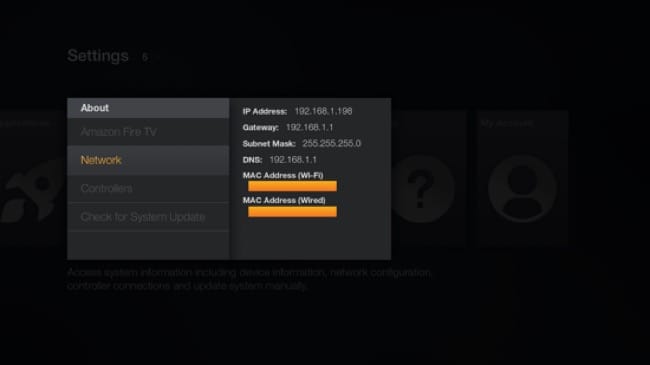
4. Assign a DHCP reservation for your Fire Stick. In your router’s admin panel, find the DHCP Reservation or Static DHCP section. Enter your Fire Stick’s MAC address (found under Settings → My Fire TV → About → Network) and assign it a permanent IP address. This means the Fire Stick will always get the same IP after any reset, eliminating DHCP lease conflicts permanently.
5. Keep a separate 2.4GHz SSID available. Even if you prefer 5GHz for day-to-day use, having a separately named 2.4GHz network available takes 30 seconds to set up and gives you a reliable fallback for any future Fire Stick setup. It also helps with other smart home devices that only support 2.4GHz.
6. Check your router’s firmware update schedule. Major router brands — ASUS, TP-Link, Netgear, Eero — push firmware updates that can silently change default WiFi settings. After any router firmware update, spend two minutes checking that your channel width, band settings, and security mode are still set to Fire Stick-compatible values. How to Fix Firestick Buffering, Lagging, or Freezing in 2026 (Ultimate Step-by-Step Guide)
Frequently Asked Questions
Why won’t my Fire Stick connect to WiFi after factory reset even with the correct password?
The correct password is necessary but not sufficient. After a reset, the Fire Stick needs a clean authentication handshake with your router. If your router is using WPA3-only security, has stale DHCP data, or is broadcasting on a 5GHz channel at 160MHz width, it can reject the connection silently even with the right password. Try Fix 3 (change the password temporarily) and Fix 4 (switch to 2.4GHz) as your most effective solutions.
How long does it take for a Fire Stick to reconnect to WiFi after a reset?
In normal circumstances, reconnecting takes 2–3 minutes — about 30 seconds to scan for networks, 30 seconds to authenticate, and 1 minute for the Fire Stick to verify the connection and load the home screen. If it takes longer than 5 minutes to reach the home screen after entering the password, the connection has stalled and you should restart the process.
Does a Fire Stick factory reset delete WiFi settings?
Yes, completely. A Fire Stick factory reset wipes all stored WiFi network names, passwords, security settings, static IP configurations, and DNS entries. There is no partial reset option that preserves network settings. You must re-enter all network information from scratch after every factory reset.
Fire Stick says “connected” but has no internet after reset — what does that mean?
“Connected — No Internet” means the Fire Stick successfully joined the WiFi network (completed the WPA handshake and received an IP address) but cannot reach external servers. The most common causes are: your ISP’s DNS server is temporarily down, your router’s WAN connection is broken, or the IP address the Fire Stick received is not routable. Fix 5 (changing DNS to 8.8.8.8) solves the DNS version of this problem in most cases.
Can I use a phone hotspot to set up Fire Stick after reset?
Yes, and it works very reliably. Enable your phone’s mobile hotspot and name it exactly the same as your home WiFi network with the same password. The Fire Stick will connect to it just like your home network. This is also a useful diagnostic — if the Fire Stick connects to the hotspot but not your router, the problem is definitely the router, not the Fire Stick.
Why does my Fire Stick keep disconnecting from WiFi after reset?
Repeated disconnections after a reset usually point to a weak signal, a DHCP lease timeout that is too short, or a router setting called “client isolation” that is dropping the Fire Stick’s connection after authentication. Check your router’s DHCP lease time (set it to at least 24 hours) and confirm client isolation is disabled. Also check the signal strength under Settings → Network — anything below “Good” will cause periodic drops.
Does the Fire Stick 4K Max support WPA3?
The Fire Stick 4K Max (both first and second generation) includes hardware support for WPA3, but Fire OS 8’s implementation has had known issues with WPA3 SAE handshakes on certain router models since its initial release. Amazon has issued partial fixes in Fire OS 8.2 and 8.3. For best results in 2026, use WPA2/WPA3 Transition Mode on your router rather than WPA3-only mode.
How do I find my Fire Stick MAC address after a factory reset?
The MAC address is accessible even without a WiFi connection. Go to Settings → My Fire TV → About → Network. You will see a “WiFi MAC Address” entry — this is a fixed hardware identifier that does not change after a reset. Write it down if you plan to set up a DHCP reservation on your router.
Is there a way to reset Fire Stick network settings without a full factory reset?
Yes. Go to Settings → Network, select your saved network, press the Menu button, and choose Forget this network. This clears the network profile without wiping your apps, account, or other settings. It is the equivalent of a network-only reset and should be your first step before considering a full factory reset for WiFi problems.
Why does my Fire Stick not find my WiFi network after reset?
If your network name does not appear in the scan list, there are three likely causes: your router is broadcasting only on 6GHz (which Fire Stick cannot see), your router has SSID broadcast disabled (hidden network), or your Fire Stick is too far from the router for a reliable scan. For hidden networks, use Join Other Network at the bottom of the WiFi list and enter the SSID manually.
What is the best WiFi band for Fire Stick — 2.4GHz or 5GHz?
For initial setup after a reset, 2.4GHz is more reliable. For daily streaming use, 5GHz is better — it delivers the higher throughput needed for 4K HDR streaming and has less interference from neighboring networks in 2026’s dense wireless environment. Connect on 2.4GHz to complete setup, then switch to 5GHz once the device is running normally.
Does resetting the router help with Fire Stick WiFi problems?
Yes — specifically a power cycle (unplugging for 60 seconds), not a factory reset of the router. A power cycle clears the DHCP lease table, resets the WPA session cache, and re-initializes the wireless radio. This directly addresses two of the most common post-reset Fire Stick connection failures. A full factory reset of the router is usually not needed and will require you to reconfigure all your router settings.
My Fire Stick worked fine before the reset. Why won’t it connect now?
Before the reset, the Fire Stick had a cached authentication state with your router that had been refined over weeks or months. After the reset, it must start that relationship from scratch — and the first handshake is the most failure-prone. Additionally, your router may have received a firmware update in the time since the last reset, changing default security settings. These two factors combine to make post-reset connections harder than initial setup.
Can a VPN cause Fire Stick WiFi issues after reset?
Not during the initial WiFi connection phase — VPN apps are not active until you install and launch them on Fire OS. However, if you have a VPN configured at the router level (router-based VPN), it can cause DNS routing failures that make the Fire Stick appear to have no internet access after connecting. Temporarily disable the router’s VPN to test whether this is the cause, then re-enable it once setup is complete.
What should I do if none of these fixes work?
If all seven fixes fail, there are two remaining possibilities: a hardware fault in the Fire Stick’s WiFi chip (rare but real — the chip can fail, especially in units exposed to heat or power surges), or a router with a firmware bug specific to Amazon Fire TV devices. Contact Amazon support with your device serial number — they can run diagnostics remotely, push firmware, or arrange a replacement under warranty. You can also check the Amazon Fire TV support page for the latest known issues and device-specific guidance.
Conclusion: Your Fire Stick Should Be Back Online
A Fire Stick not connecting to WiFi after reset is frustrating, but it is almost always solvable without buying new hardware or calling a technician. The seven fixes in this guide address every known cause of post-reset WiFi failure in 2026 — from basic power-cycle tricks to deep router configuration changes for WPA3, channel width, DHCP conflicts, and Fire OS 8 compatibility quirks.
Start with Fix 1 (power cycle) and Fix 3 (temporary password change) — between them, they resolve the problem for the majority of users. If you have a newer Wi-Fi 6 or Wi-Fi 6E router from ASUS, TP-Link, or a similar brand, Fix 4 (switching to 2.4GHz) and Fix 5 (router channel and DNS settings) are your most important steps. And if you want to avoid ever dealing with this again, set up a DHCP reservation for your Fire Stick’s MAC address today — it takes five minutes and eliminates the most common failure point permanently.
If this guide helped you get back online, share it with someone who has been stuck on the same problem — it could save them hours of searching. And if you found a fix that worked for your specific router model that is not mentioned here, drop it in the comments below. Real-world fixes from readers are some of the most valuable additions to a guide like this, and they help the next person who lands here with the same router and the same headache.

Frenzy valentine is a passionate blogger, developer, and entrepreneur. He is the founder and author of myfreshgists.com.