Your Zoom call was going fine and then it dropped. Again. You rejoin, apologise, and two minutes later the same thing happens. Before you blame Zoom itself, the problem is almost never the app. It is almost always something between your device and Zoom’s servers — and once you know which layer is breaking down, the fix is usually quick. Here is how to work through it properly.
Check Zoom’s servers before you do anything else
The first thing to rule out is a Zoom-side problem. If Zoom is having a global outage or a regional issue, no fix on your end will work until they resolve it. Go to status.zoom.us and check the current status before spending time troubleshooting your own setup. If everything shows green and you are still dropping, the issue is local to your connection or device.

The most common reason Zoom keeps disconnecting
The single most common cause of Zoom dropping is an unstable Wi-Fi connection, not a slow one. People assume that because their speed test looks fine, their connection is fine. Speed and stability are two different things. A connection can show 100 Mbps on a speed test and still drop packets constantly, which is exactly what causes Zoom to stutter, freeze, and disconnect.
Zoom only needs 3 Mbps download and 2 Mbps upload for a stable HD video call. What it cannot tolerate is packet loss, which is when small chunks of data get lost in transit. Even 2 to 3 percent packet loss is enough to trigger the “Your Internet Connection Is Unstable” warning and cause repeated drops.
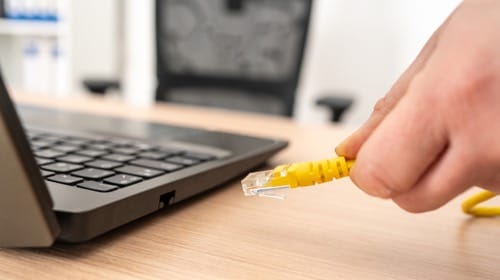
The fastest way to test whether Wi-Fi is your problem is to plug your computer directly into your router with an ethernet cable, rejoin the call, and see if the drops stop. If they do, your Wi-Fi is the culprit. If drops continue on ethernet, the problem is deeper — your ISP, your router, or the Zoom app itself.
Why Zoom drops even when your Wi-Fi looks strong
A strong Wi-Fi signal bar does not mean a stable connection. Several things can cause drops even when your signal looks good.
Distance and obstructions. Walls, floors, furniture, and other devices all weaken Wi-Fi signal strength. You might be showing four bars but still experiencing enough interference to cause packet loss during a video call. Moving closer to your router, or removing obstructions between you and it, can make an immediate difference.
Too many devices competing for bandwidth. Every device connected to your home network shares the same bandwidth. If someone is streaming video, downloading a game, or running a cloud backup in the background while you are on a Zoom call, those other devices are eating into the bandwidth Zoom needs. Check what else is running on your network during calls and pause anything you do not need.
Router channel congestion. If you live in an apartment block or a densely populated area, your router’s Wi-Fi channel may be congested with signals from neighbouring networks. Logging into your router’s admin settings and switching to a less crowded channel — or enabling the 5 GHz band if your router supports it — can reduce interference significantly.
Battery saver mode. This one catches a lot of people off guard. When your laptop or phone is running on battery saver mode, the operating system throttles network activity to conserve power. Zoom drops its connection as a direct result. Keep your device plugged in during important calls, or disable battery saver mode before you join.
Your VPN might be the problem
A VPN routes your traffic through a remote server, which adds latency and can introduce instability. If the VPN server you are connected to is under load, far away, or experiencing its own issues, Zoom traffic gets affected before it even leaves your network properly. Try disabling your VPN completely and rejoining the call. If the drops stop, your VPN is the cause. If you must use a VPN for work, ask your IT team to configure split tunnelling, which allows Zoom traffic to travel directly without going through the VPN tunnel.
Background apps eating your bandwidth
Cloud backup services like Dropbox, OneDrive, and Google Drive often run large syncs in the background. Antivirus software runs scheduled scans. Windows Update downloads and installs at unpredictable times. Each of these can consume a significant chunk of your available bandwidth or CPU, causing Zoom to drop mid-call without any obvious warning. On Windows, open Task Manager and click the Network column to sort by usage. On Mac, open Activity Monitor and check the Network tab. If you see another process consuming bandwidth during a call, pause or postpone it.
An outdated Zoom app causes more drops than most people realise
Zoom releases updates regularly, and older versions of the app contain bugs that have already been patched. Running an outdated build is one of the most common and most overlooked causes of random disconnections. In Zoom, click your profile picture and select Check for Updates. Install any available update, restart your computer, and test again. If your organisation manages Zoom centrally, let the built-in update prompt run rather than dismissing it.
Firewall and security software blocking Zoom
Overly aggressive firewall settings can block the ports Zoom uses to maintain its connection. Zoom requires access to specific TCP and UDP ports to function properly. If a firewall update, a new security tool, or a corporate network policy has blocked those ports, Zoom will keep dropping or fail to connect reliably. On Windows, go to Settings, then Windows Security, then Firewall and Network Protection, then Allow an App Through Firewall, and make sure Zoom has access on both public and private networks. On a corporate machine, your IT administrator will need to handle this.
How to diagnose your Zoom drops in real time
Zoom has a built-in tool that shows you exactly what is happening during a call. While you are in a meeting, click the upward arrow next to the microphone icon and select Statistics. This panel shows you real-time data on latency, packet loss, and jitter for both your audio and video streams. If packet loss is above 1 percent, your connection is the problem. If latency is consistently above 150 milliseconds, your connection is too slow or too congested for stable calls.
You can also run a simulated Zoom connection test at zoom.us/test before an important meeting. It checks your connection to Zoom’s servers and flags potential issues before the call starts.
How to Calculate Your Internet Outage Cost and Whether Failover Pays Off
When the problem is your ISP, not your setup
If Zoom drops at the same time every day — particularly in the morning when people start work or in the evening when home usage peaks — the problem is likely your ISP’s shared network congestion rather than anything inside your home. Run speed tests at different times of day to compare. If your speeds are significantly lower during the periods when Zoom drops, speak to your ISP and ask them to check node utilisation on your connection. This is the same shared bandwidth problem that causes morning internet drops across many cable connections.
Applying a few of these fixes in combination resolves Zoom dropping for the vast majority of people. Start with the ethernet test to isolate Wi-Fi, check what is running in the background, update the app, and disable the VPN. If you are still dropping after all of that, the real-time statistics panel inside Zoom will point you directly at where the breakdown is happening. For the full list of ports and network requirements Zoom recommends for stable calls, the official guidance is detailed on Zoom’s network firewall documentation. Most dropped calls have a simple cause. It just takes the right set of tests to find it.

Frenzy valentine is a passionate blogger, developer, and entrepreneur. He is the founder and author of myfreshgists.com.